
How to Make AI Video Ads: 2026 Tutorial
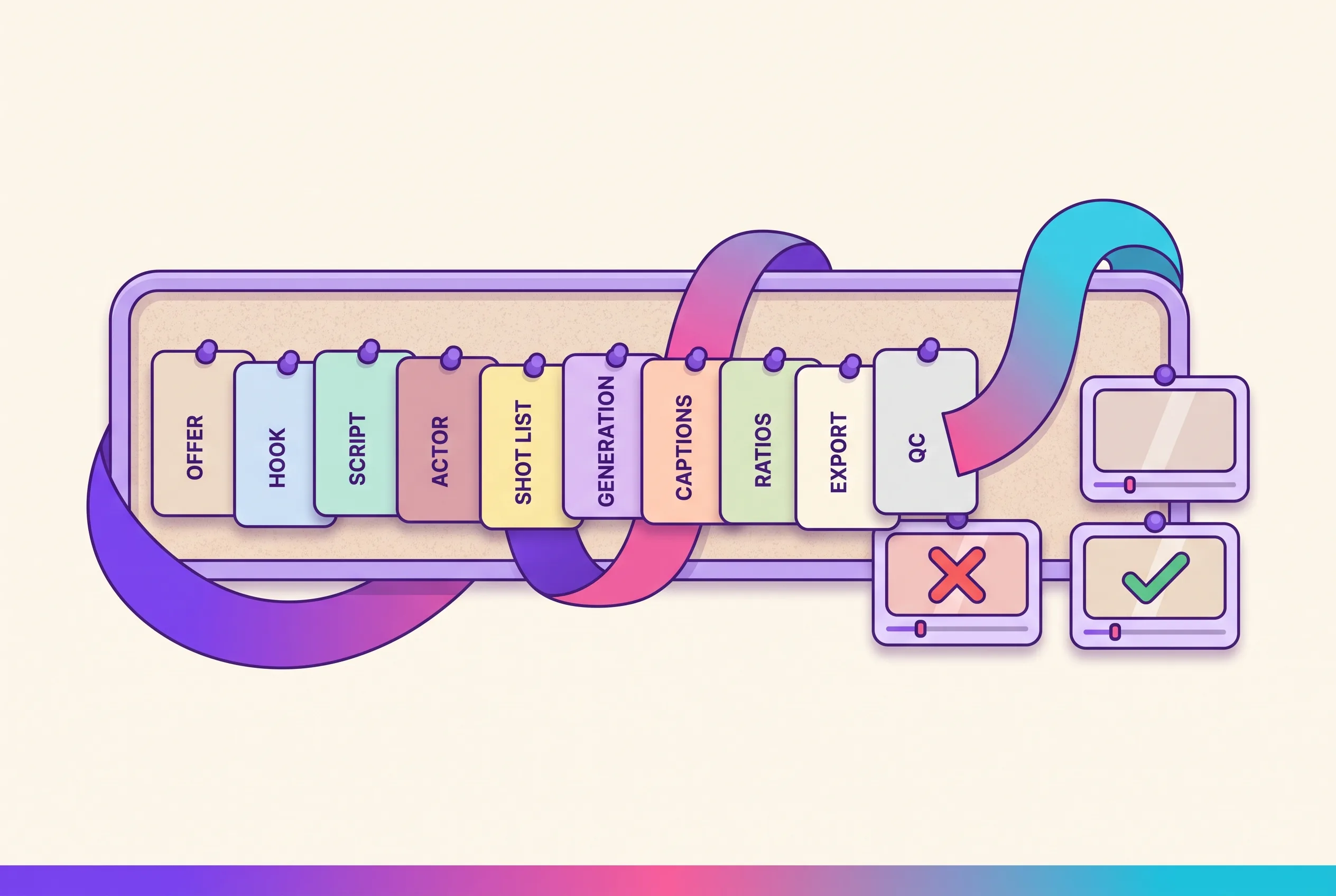
How to make AI video ads is a ten-stage build: offer, hook, script, actor, shot list, generation, captions, aspect-ratio variants, export, and a QC pass before any budget goes behind the file. This page runs all ten on one short-form performance ad — a four-cut spot that has to hold the same face from the first frame to the last and ship in more than one placement ratio.
Here is what separates this from every other tutorial on the query. Those pages show the happy path. This one shows the render that came back wrong: bad lip sync, a face that drifts from one cut to the next, six fingers on the product hold, blown highlights, a hallucinated product label. Each defect gets its mechanism and the exact change that repairs it.
Playcut publishes this, and it is the studio the build is specified in — every credit figure below is our own published rate with the arithmetic shown. What this page does not do is define the category, rank tools, or re-argue whether AI ads work. That is the pillar’s job: the seven AI video ad formats and the four production paths.
Table of contents
- What we’re building
- The ten-stage build
- Step 1: The offer
- Step 2: The hook
- Step 3: The script
- Step 4: The actor identity
- Step 5: The shot list
- Step 6: Generating the cuts
- Step 7: Captions
- Step 8: Ratio variants
- Step 9: Export
- Step 10: The QC pass
- Troubleshooting: seven defects
- What this ad cost
- When not to generate
- Playcut in one session
- FAQ
- Sources
- Conclusion
What we’re building: the brief for one real ad
The artifact is one 16-second, four-cut vertical ad for a freelance invoicing app. It ships 9:16 as the master placement — TikTok In-Feed and Meta Reels — with a 4:5 companion for Meta Feed. It is deliberately not a product-catalog ad and not a testimonial, because those are different builds with different rules.
Nothing here is ranked; tools appear as per-step examples. If you have not picked a platform yet, eight AI ad makers ranked on brief-to-ad completeness is a separate page.
The offer, the placement, and the constraint
Three things are fixed before any tool opens. The offer: the first 100 invoices free, then $12 a month, cancel anytime. The audience: freelancers who chase unpaid invoices. The objection to beat: “I already do this in a spreadsheet.”
The delivery ratios get chosen now, not after export: 9:16 master, 4:5 second placement. That order matters, because the ratio decides which model is allowed to render the cut at all.
The runtime is 16 seconds, cut four ways at four seconds each. Four seconds is the lowest rung on Veo 3.1’s 4 / 6 / 8-second enum, and on that model the rung is also the cheap gate — the same Veo cut at eight seconds costs exactly twice as much, 1,280 credits against 640.
The four inputs to have ready before Step 1
Four inputs decide whether Step 1 starts clean. Each is an artifact you can point at, not an intention.
| Input | Gives the render | Prepare it | Missing it costs |
|---|---|---|---|
| Written offer | The claim every cut serves | Four lines: what, who, price, objection | Clean cuts that sell nothing |
| Brand kit | Colour, type, logo, voice | Load once per workspace — every plan has one | Four cuts, four registers |
| Saved actor ID | One face across every cut | Build once, save it, reference it | A face that drifts from cut to cut |
| Product stills | A locked product look | Attach real stills, never a description | A hallucinated label |
How to make AI video ads: the ten-stage build
You make AI video ads in ten stages: offer, hook, script, actor, shot list, generation, captions, aspect-ratio variants, export, and a QC pass before spend. Pick your delivery ratios first — every video model accepts only certain aspect ratios, so an unsupported placement means a fresh render, not a re-export.
- Offer — decide what the ad is actually selling before any creative exists.
- Hook — write the first three seconds as its own deliverable.
- Script — 40–80 words of speech, not ad copy.
- Actor — generate one actor and save the ID; every later shot reuses it.
- Shot list — 3–5 cuts, with the identity requirement written per cut.
- Generation — pick the model per shot against the ratio and duration it supports.
- Captions — burn in, inside the platform’s safe zones.
- Aspect-ratio variants — generate each placement’s ratio, don’t crop into it.
- Export — one master per placement.
- QC — check lip sync, identity, hands, highlights and product labels before spend.
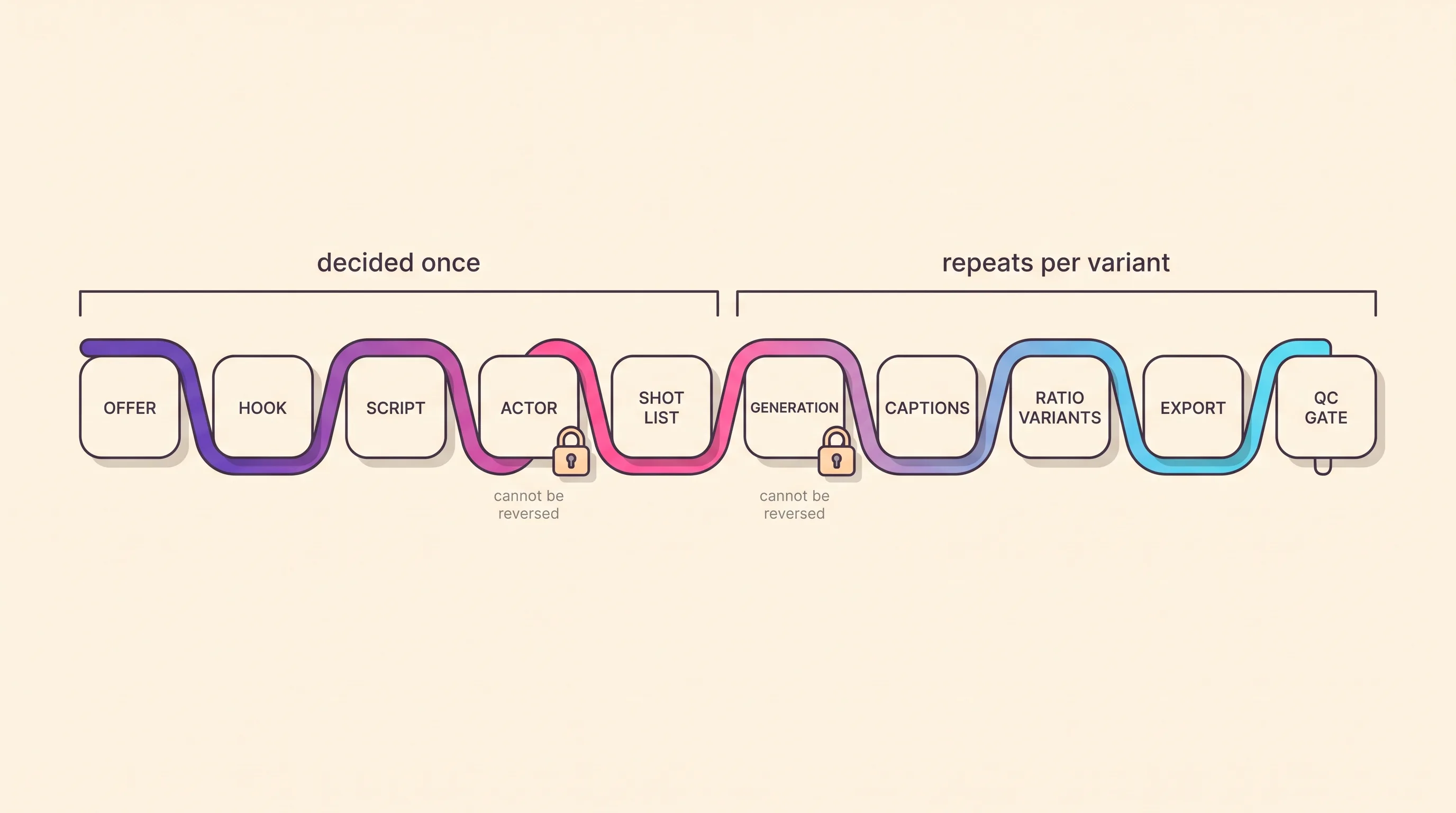
| Stage | What it produces |
|---|---|
| 1. Offer (decision) | Four written lines |
| 2. Hook (decision) | One line that reads muted |
| 3. Script (decision) | A timed read per cut |
| 4. Actor (render) | One saved actor ID |
| 5. Shot list (decision) | Four prompt blocks |
| 6. Generation (render) | Four 4-second cuts |
| 7. Captions (decision) | A burned-in caption track |
| 8. Ratio variants (render) | One file per ratio |
| 9. Export (render) | One master per placement |
| 10. QC (decision) | A pass, or a named re-render |
Stages one to five are decided once. Stages six to ten repeat for every variant and every delivery ratio, which is what makes the first five worth the hour they cost.
Step 1: Write the offer before you write a word of script
Write the offer before any tool opens: what is sold, to whom, at what price, and against which objection. Not one of the fourteen ranking pages in the August 2026 SERP harvest behind this article starts here — all fourteen open at a script, a tool or a product asset. That gap is why so many AI ads render beautifully and sell nothing.
For this build the four lines are:
- What is sold — a freelance invoicing app.
- To whom — freelancers who chase their own unpaid invoices.
- At what price — the first 100 invoices free, then $12 a month, cancel anytime.
- Against which objection — “I already do this in a spreadsheet.”
Every later stage is generated against those four lines. The hook is the objection said out loud, the script is the offer in spoken register, and the shot list is whatever makes the price believable inside sixteen seconds.
Stuck on the fourth line? The free AI ad angle generator scaffolds angles against a stated objection — client-side, no signup, a deterministic template rather than a live model.
Step 2: Engineer the hook for a muted, scrolling feed
Engineer the hook as a still image first, because that is how it gets judged. It has to read with the sound off, at thumb speed, before it is ever a moving clip. TikTok’s guidance is to “introduce your content proposition in the first 3 seconds for better recall and awareness” and to “prioritize your hook in the first 6 seconds” — see TikTok’s own creative best practices for performance ads.
Now read Google’s spec next to it. On YouTube Shorts, the call-to-action button appears three seconds into the ad for Performance Max, App and Demand Gen campaigns, and ten seconds for Video View and Video Reach. Google’s own overlay lands on your frame at exactly the second TikTok tells you to place the proposition. Compose those three seconds knowing something else will be sitting on them.
Our hook is the objection said out loud in the first second: “Your spreadsheet doesn’t chase anyone.” One spoken line, four words of on-screen text, and it survives as a frozen frame. Screenshot the first frame of any hook you write — if it is unreadable there, it is unreadable in the feed.
The free TikTok hook generator prints hook patterns by angle — another template scaffold to react against, not a writer.
Step 3: Write the script to a stopwatch, not a word count
Write in spoken register, then time the read against the duration rung you can actually render. The rung sets the word count, not the other way round: a four-second cut holds roughly nine words at a normal 130-words-per-minute delivery, and rewriting will not change that.
These counts come from the 100 / 130 / 160 WPM presets on our free video script timer. Always read a word count with its WPM attached.
| Duration rung | @100 WPM | @130 WPM | @160 WPM |
|---|---|---|---|
| Veo 3.1, 4 s | ~7 words | ~9 words | ~11 words |
| Veo 3.1, 6 s | ~10 words | ~13 words | ~16 words |
| Veo 3.1, 8 s | ~13 words | ~17 words | ~21 words |
Actor Act fastest, 10 s | ~17 words | ~22 words | ~27 words |
Actor Act plus, 15 s | ~25 words | ~33 words | ~40 words |
Only two of this ad’s four cuts carry dialogue. Cut 1 is the hook line; cut 4 is the call to action — “First hundred invoices free. Link’s right there.” Cuts 2 and 3 are image-to-video with no speech, so their words live in the caption track instead of the read.
The craft of spoken register itself — writing a line that sounds said rather than written — belongs to the spoken-register scripting method for a single UGC clip. Read it once; this page assumes it.
Step 4: Lock the actor identity before the first render
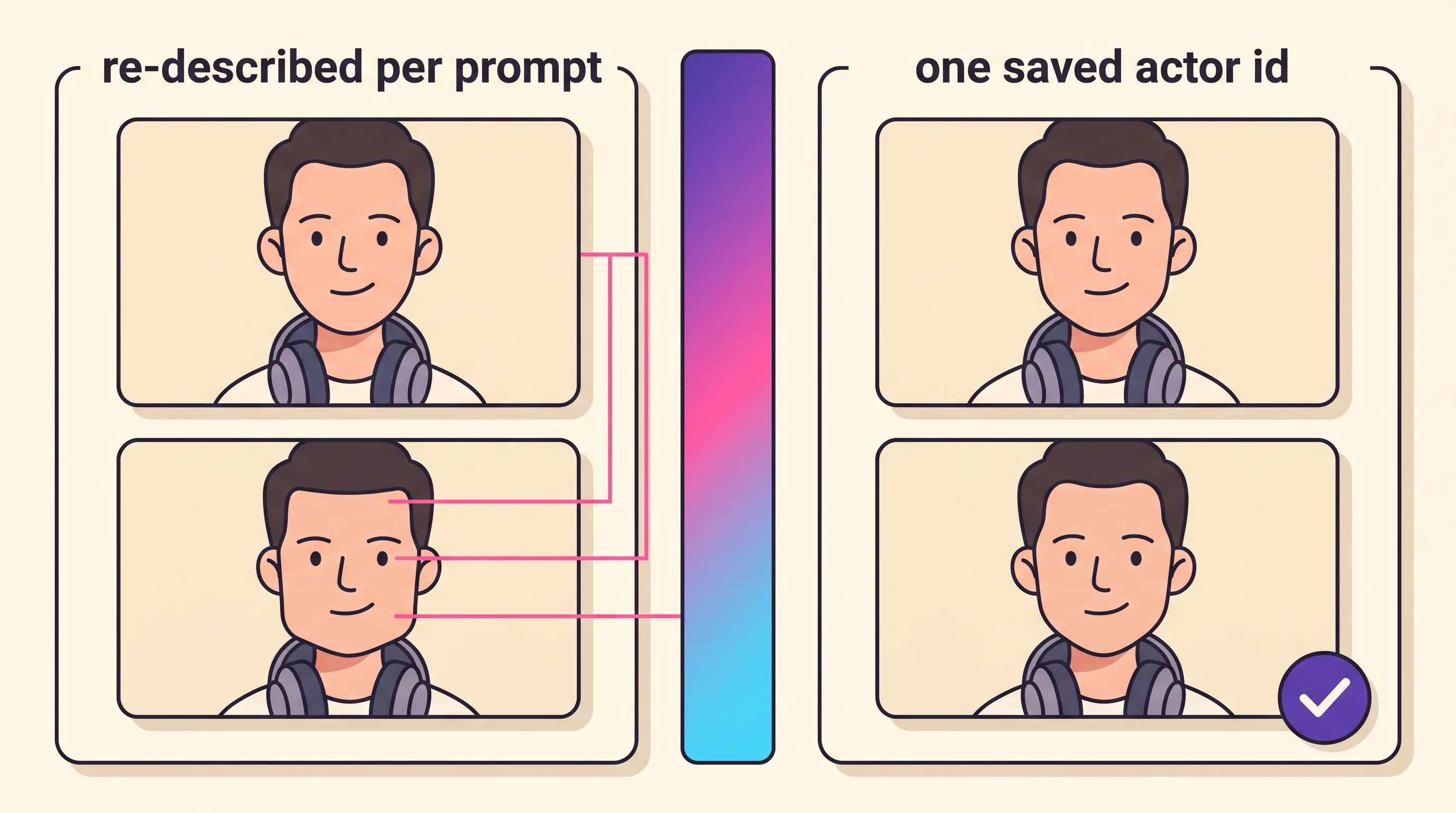
Lock the identity before the first render. Build the actor once, save it as a reusable ID, and reference that ID in every cut instead of re-describing the face in each prompt. A text description gets re-interpreted on every generation, which is exactly why shot four stops looking like shot two.
This is documented behaviour, not a workaround. Google’s Veo page instructs you to keep characters looking the same across scenes “by giving Veo reference images of your character,” and the Introducing Veo 3.1 post by Alisa Fortin, Luis Cobo and Guillaume Vernade (15 October 2025) puts the ceiling at three reference images per generation. Consistency is a reference feature, not an emergent one.
In Playcut the actor is built by you rather than picked from a stock library, and the same saved ID drives both stills and motion — there is no second actor record to drift from. Custom actor caps are 3 on Hobby, 10 on Pro, 25 on Studio and unlimited on Agency, which is a real constraint on how many campaigns one workspace carries at once.
You can build a custom AI actor and re-cast it in every shot from a single saved identity, and the Consistent AI Character Generator writes the persona sheet for free. The mechanism underneath — why one saved actor ID holds the same face across shots — has its own guide.
Step 5: Build the shot list — 3 to 5 cuts that hold one face
Write every cut and its prompt block before you render anything. Three to five cuts covers most short-form performance ads: hook, problem, product in use, proof, call to action. Ours uses four. No page in the fourteen-page corpus behind this brief renders more than one shot.
Multi-cut is structural, not stylistic. Veo 3.1’s longest single clip is 8 seconds, while Google’s Demand Gen specs state that “videos less than 10 seconds are ineligible to serve on YouTube In-stream.” A one-generation ad is locked out of one of Google’s largest placements before you write a word.
| Cut | Job | Source frame | Human face in source? |
|---|---|---|---|
| 1 | Hook — actor says the objection back | None, actor performance | Yes, the saved actor ID |
| 2 | Problem — overdue invoices on a laptop | Generated still | No, the desk is unoccupied |
| 3 | Product in use — the app, one tap, over the shoulder | Generated still | Yes, the saved actor in three-quarter profile |
| 4 | Call to action — actor delivers the offer | None, actor performance | Yes, same saved ID |
That last column is not decoration. It is the gate for Step 6, because at least one video model in the catalog refuses source images containing human faces outright. Answer it per cut here, not while waiting on a 400.
Each cut gets one prompt block, written to Google’s documented five-part shape — cinematography, subject, action, context, style and ambiance:
CUT 1 - hook - actor performance, saved actor ID
Medium close-up, handheld, eye level. [saved actor ID] in a home-office doorway,
laptop bag on one shoulder, turns to camera. Late-afternoon window light, muted
warm palette, shallow depth of field.
Actor says: Your spreadsheet doesn't chase anyone.

CUT 2 - problem - image-to-video from a generated still, desk unoccupied
Slow push-in, locked off. A laptop on an empty desk shows an ageing invoice list,
three rows flagged overdue. Cool overcast light, desaturated, quiet.
Negative: extra fingers, warped text, duplicate rows.

CUT 3 - product in use - image-to-video from a generated still, actor in frame
Over-the-shoulder insert, shallow depth of field. [saved actor ID] seen from behind
and to the side, face visible in three-quarter profile, one hand holding the phone
and tapping a single button to send the reminder. Same wardrobe cuff and window
light as cut 1.
Negative: extra fingers, fused fingers, deformed hands, melted lettering.

CUT 4 - call to action - actor performance, same saved actor ID
Medium close-up, handheld, eye level. Same actor, doorway and wardrobe as cut 1,
half-smiling. Late-afternoon window light, shallow depth of field.
Actor says: First hundred invoices free. Link's right there.
Two conventions there are worth naming as what they are. Negative prompts are written as nouns, because Google’s prompting guide recommends describing what you don’t want to see rather than using words like “no” or “don’t”.
The dialogue form who says: line is documented by Google; wrapping the line in quotation marks is community practice its own examples do not use. If you would rather start from a template, the free shot list generator scaffolds the cut breakdown.
Step 6: Generate the cuts — pick the model per shot
You pick the model per shot yourself — there is no automatic router here. Seven video models sit in one picker, and each cut’s ratio, duration and source frame decide which of them are even legal for it. Read the per-model aspect-ratio and duration limits, model by model before spending a credit.
| cut | model committed | why this model |
|---|---|---|
| 1 — hook | Actor Act fast | The actor speaks the hook. fast is the cheapest Act tier that allows 4 seconds: 17 credits a second plus a flat 15-credit scene start. |
| 2 — problem | Seedance 2.0 image-to-video | 21 credits a second at 720p, and it generates ambient audio where both Grok Imagine models return silent clips — legal only because no person is in the source still. |
| 3 — product in use | Veo 3.1 image-to-video | The source still carries the actor’s face, which puts it out of Seedance’s reach. 160 credits a second. |
| 4 — CTA | Actor Act fast | The same saved actor ID as cut 1, so the face that opened the ad closes it. |
Cut 3 is where the picker stops being a preference. Seedance 2.0 rejects input images containing human faces — ByteDance’s filter returns a 400, not a degraded render — so any cut whose source still shows a face goes to Veo 3.1 instead. That is why Step 5 records whether a person is in each source frame.
If you want the cheapest second in the catalog rather than the cheapest legal one for this cut, it is Grok Imagine classic at 20 credits a second at 720p, with Seedance 2.0 at 480p cheaper still at 10. Both are silent, which is why neither took cut 2.
The duration rung is a pricing decision wearing a creative costume. Veo 3.1 renders 4, 6 or 8 seconds, but the ladder collapses to a forced 8 seconds at 1080p, at 4K, with reference images, on interpolation and on extension. Only 720p text-to-video and 720p animate leave 4 and 6 available, which is why cut 3 — the one Veo cut in this build — is 720p and 4 seconds.
The other three sit at 4 seconds because the runtime was decided at Step 1, not because their models force it: Act fast allows 4 to 10 seconds and Seedance 2.0 allows 4 to 15. Veo 3.1’s published capability sheet carries the ladder, 24 FPS output and 9:16 or 16:9 only; Playcut’s page on all five Veo 3.1 modes and the ratios each one refuses maps them mode by mode.
Expect the speech to be the weakest part of the render, and do not assume the fault is your prompt. Google DeepMind publishes the limitation itself: creating videos with “natural and consistent spoken audio, particularly for shorter speech segments, remains an area of active development.” Read Google DeepMind’s own note on where Veo’s spoken audio still breaks before you re-roll.
Silence is a separate problem: Veo 3.1 Fast lists sound generation as not supported, so a mute clip there is a model-capability limit, not a prompt failure.
Step 7: Caption for sound-off, inside the safe zones
Burn the captions into the frame, because the platform’s own caption field is not a design surface. Per TikTok’s In-Feed auction ad specifications, ad captions render “in white with a uniform font that can’t be customized,” carry no clickable links, no @ symbols and no hashtags, and Spark Ads captions cap at four lines including emojis. Anything styled or positioned has to live inside the video.
TikTok also publishes a rate, which turns “add captions” into a spec you can check. Its creative best practices recommend “displaying 5-10 words per second when using text.” At 16 seconds that caps readable on-screen copy at roughly 80 to 160 words for this ad — 5 × 16 and 10 × 16. Count what is on screen against the clock, not against the script.
The safe zone is variable by design, and TikTok says so: “The safe zone size is determined by the dimension (vertical, horizontal, or square), ad caption length, and any additional formats used.” It ships downloadable safe-zone templates instead of a number, and warns that the preview “is not specific to a device.”
Meta’s Ads Guide plays the same role for Reels and Feed. Treat every published pixel box, ours included, as an approximation to verify on a real handset.
Step 8: Produce the aspect-ratio variants (this is not a re-export)
A second delivery ratio is a fresh generation, not a re-export. Every video model accepts only certain aspect ratios, so the 4:5 Meta Feed companion for this ad is not a crop of the 9:16 master — it is the same four cuts, 16 seconds in total, re-rendered on a model that accepts 4:5. HappyHorse 1.1 tops out at 15 seconds in one clip, so the companion is assembled exactly like the master.
| delivery ratio | video models in the catalog that accept it |
|---|---|
| 16:9 and 9:16 | Veo 3.1, Gemini Omni Flash and the rest of the video lineup |
| 4:5 | HappyHorse 1.1, and nothing else |
| 1:1 | HappyHorse 1.1, Wan 2.7, both Grok Imagine models, Seedance 2.0 — not Veo, not Gemini Omni Flash |
| 21:9 | Seedance 2.0, HappyHorse 1.1 |
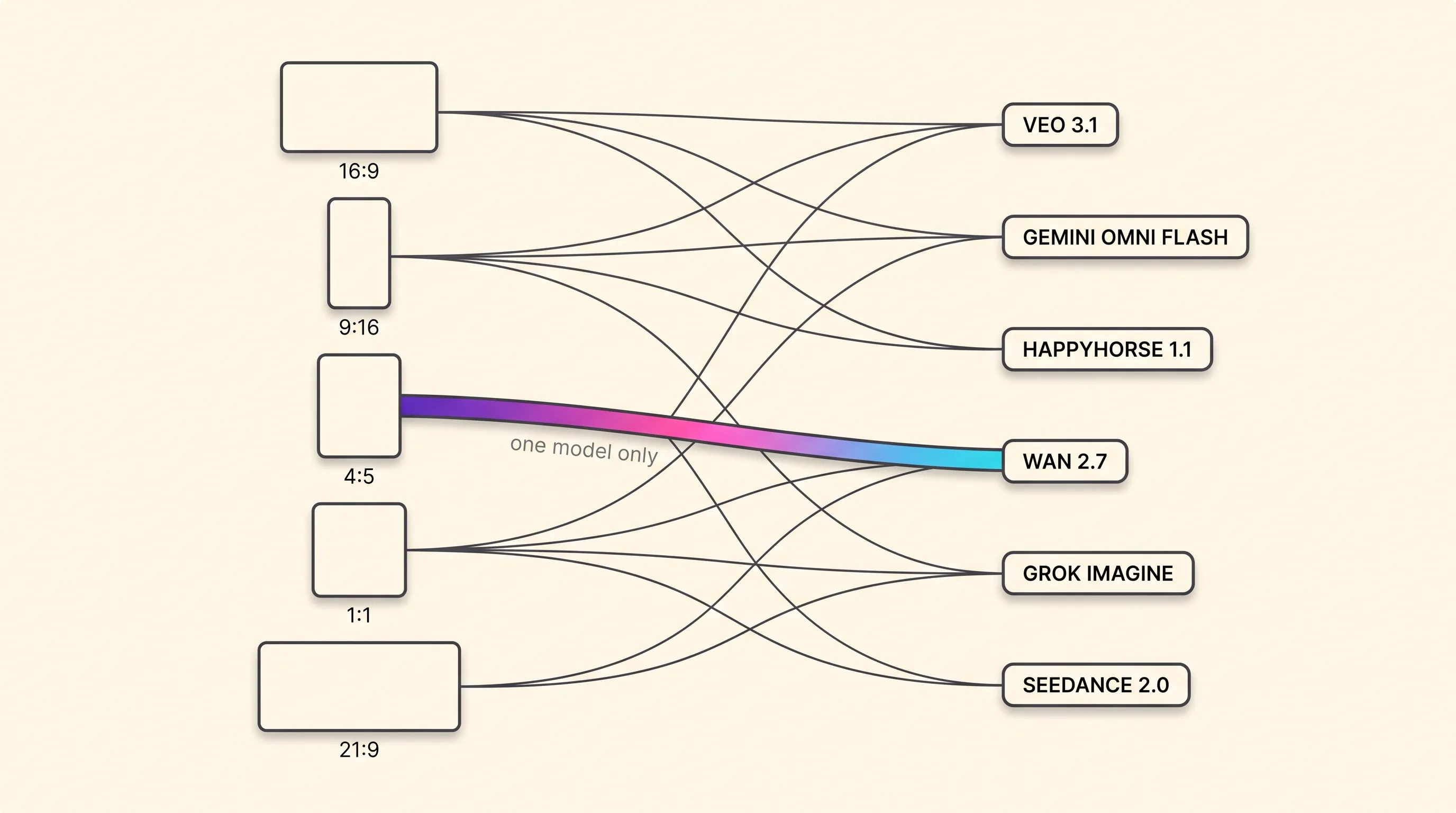
Since 4:5 lives on HappyHorse alone, write the companion cuts to its rules. Our HappyHorse prompts for 4:5 and other odd frames keep exclusions in the main text, because HappyHorse rejects negative prompts.
Veo’s reference-to-video mode is the strictest surface in the catalog: 16:9 only, 8 seconds only, three references maximum, and it refuses 9:16 outright. A refused ratio returns a 400 before credits are held, so the rejected attempt costs nothing — what it costs is the plan built around it.
Cropping into a ratio is the alternative, and the arithmetic is unkind. Reframing a 16:9 master to 9:16 at full height retains (9÷16) ÷ (16÷9) = 0.5625 ÷ 1.7778 = 0.316 of the width, so about 32% of the horizontal frame survives and 68% is thrown away. Check your own pair in the free aspect ratio calculator before committing to a master ratio.
Platforms run their own crude version of that crop. Google’s YouTube Shorts ad asset specs state that horizontal assets “serve with blurred top and bottoms in the vertical Shorts experience.”
Compose for the tightest ratio first and let the wider ones inherit the margin. Then check the on-screen text in each ratio with the free safe-zone checker — client-side, no signup, nothing uploaded, and its boxes are approximations by its own admission.
Ratios are one multiplication axis; hooks are the other. Because the identity is saved rather than described, you can run the hook swaps from one saved actor instead of re-rolling a new face — changing cut 1 only, leaving cuts 2 to 4 untouched.
Step 9: Assemble and export the master file
This ad is assembled from four clips; a 30- to 60-second spot is assembled from more. Nothing in the catalog generates a finished spot in one call. Playcut has no timeline and no NLE, so the stitch happens in your own editor.
Veo’s extension mode is the one native way to add time, and it is narrow. It is Veo-only, 720p only, 8 seconds at a time, and the source clip must itself be Veo-generated; it refuses sources over 141 seconds and clips already extended twenty times, and a 1080p or 4K clip is a dead end. It is also dearer per new second than a fresh render — 1,280 ÷ 7 ≈ 183 credits a second against 160.
Two export facts almost no tutorial prints. Veo renders at 24 FPS while Display & Video 360’s video creative specification asks for 23.98 or 29.97, and nothing in a generative pipeline normalises audio to the −24 LKFS ±2 that the same spec requires. Both get fixed at export in your editor, not in the studio.
TikTok’s In-Feed numbers are limits, not targets: at least 516 kbps, and no more than 500 MB. Ship well above the floor and under the cap — the free video bitrate calculator turns a resolution and a target size into a number you can set.
Step 10: Run the pre-spend QC pass
Put a gate between the export and the money. Five checks, in this order, before a dollar of budget goes behind the file.
- The claim survives the export. What the offer promised in Step 1 — first 100 invoices free, then $12 a month — has to stay legible and accurate in the finished cut, in every ratio.
- The identity holds across every cut. Watch every cut that carries the face — here 1, 3 and 4 — back to back at full speed, then paused. A face that reads fine in motion often fails on a freeze frame.
- On-screen text sits inside the delivered ratio’s safe zone. Check each ratio in its own placement preview, not in the editor you assembled it in.
- The file clears the platform’s floor specs. Frame rate, bitrate, file size and loudness, per placement, against Step 9.
- The disclosure is set.
Set the AI disclosure once and confirm it here: the 2026 AI disclosure rules and penalties cover what the law asks — Article 50 of the EU AI Act has been in force since 2 August 2026, per the European Commission’s own Article 50 transparency FAQ — while the platform-by-platform AI-disclosure toggle paths cover where the switches live.
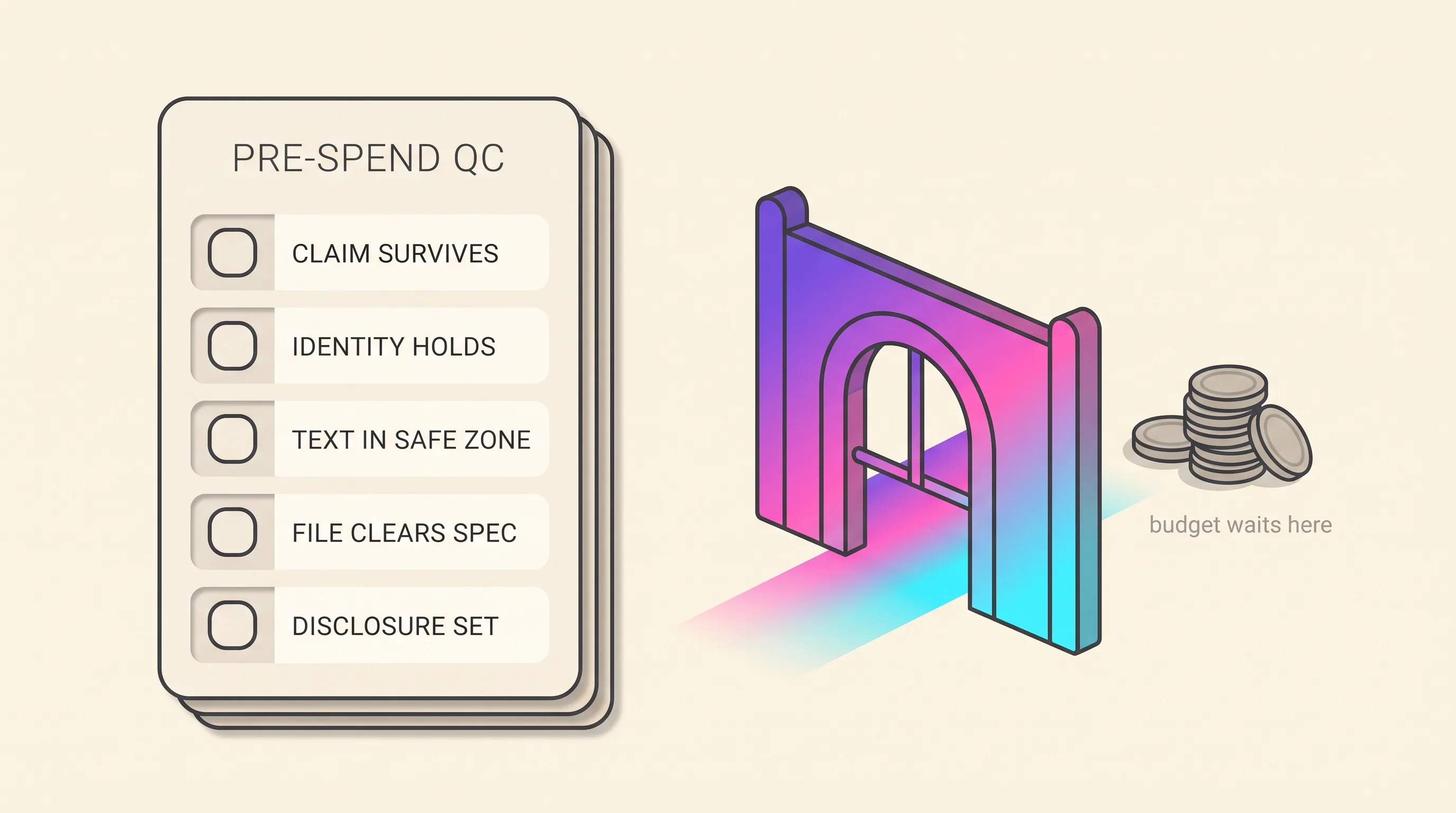
The gate exists because the expensive failure is not a bad render. It is a bad render with media spend behind it.
When the render comes back wrong: seven defects and the exact fix
Generated video fails in a small, catalogued number of ways, and each one has a specific repair. VBench, which decomposes generated-video quality into sixteen measurable dimensions, is the reference taxonomy; the seven defects below are the ones that actually kill ads.
Two upstream causes make all seven harder to debug. The first is a prompt rewriter you cannot switch off: Google’s documentation states plainly that “You can’t disable the prompt rewriter when using Veo 3 and 3.1 models,” and the rewritten prompt comes back to you only when your original ran under 30 words. Google documents that the rewriter runs, not what it did to your wording — so never claim to know what it changed.
The second is the seed. Google documents a deterministic seed on the Veo API, but Playcut records it on the asset for provenance and never forwards it, so re-runs are not reproducible. Change-one-variable debugging is unavailable: reference images, start frames and saved actor IDs are the only determinism you have.
The mouth doesn’t match the line
On an Actor Act clip there is nothing to re-sync. The video model performs the dialogue written into the prompt, so there is no text-to-speech stage and no lip-sync stage to repair — the API rejects voiceId with a 400 on every engine tier.
That leaves three levers: re-prompt the line, change the engine tier, or change the shot so the mouth is not the subject. DeepMind names short speech segments as the hard case, which argues for fewer words per cut, not more takes. If you need an audio track you control, Wan 2.7 is the one model that lip-syncs a still image to audio you supply, at 40 credits a second at 720p.
For that route, start from our Wan 2.7 prompts for a photo that speaks your own audio, which describe only the motion and the camera and let your audio file carry the words.
Score it rather than eyeballing it. SyncNet’s LSE-D, where lower is better, and LSE-C, where higher is better, are the instruments every published lip-sync figure is computed against.
The face drifts between shot 2 and shot 4
The face drifted because it was described again in each prompt instead of being driven by one saved identity. A text description gets re-interpreted on every render, so shot four is a fresh reading of the same sentence rather than the same person.
The rewrite is mechanical — delete the appearance sentence and reference the saved actor instead:
Before: a freelancer in their late twenties, dark hair, headphones around
        the neck, at a kitchen table, holding a phone
After:  <saved actor id>, at a kitchen table, holding a phone
Diagnose in this order. Did the reference actually attach? A bad asset id does not stop the job — the worker logs a warning, drops that reference and renders anyway, and you still pay 67 credits for an image that ignored the brief. Only once that is ruled out is a re-roll the answer.
Score this the same way you score lip sync. ArcFace embeddings plus cosine similarity between the two faces is the standard identity-match measure, and insightface’s buffalo_l is the reference build.
Reference capacity then decides which models stay open: Nano Banana Pro and Nano Banana 2 take 14, HappyHorse 1.1 and Seedance 2.0 take 9, Wan 2.7 takes 5, Veo 3.1 takes 3, and Grok Imagine 1.5 rejects references outright. That is the case for a saved AI actor identity over a described one.
Malformed hands and fingers on the product hold
Two fixes work and one does not. Frame the hand out of the shot, or make the grip the subject so the model spends its capacity there — a tight, well-lit hand on a phone renders far better than a hand at the edge of a wide frame. No model in the Playcut catalog repairs hands after the fact.
Write the negative prompt as nouns, per the Step 5 convention: extra fingers, fused fingers, deformed hands — never no extra fingers. This is a documented research problem rather than user error, and HanDiffuser exists because generative models get finger count and hand shape wrong.
Blown highlights and clipped whites
Blown highlights are a prompt defect, because there is no exposure control to turn down. Playcut has no timeline, no curves and no highlight slider — lighting is set by prompt language and by which studio filter the shot runs under. Google’s five-part prompt formula makes lighting a named component, inside the style-and-ambiance clause. That clause is where the repair goes.
Switch the cut to Studio Softbox or Editorial Light, two of the eight studio filters that ship on every plan, and re-render. Then name the defect in the negative prompt as nouns: blown highlights, clipped whites, harsh specular hotspot.
The product label came back hallucinated
The repair is upstream, not in review. The usual advice on this defect is to watch the render end to end and catch it — that is detection, not a fix.
Generate the label as a still in Nano Banana Pro, which Google publishes as “the best model for creating images with correctly rendered and legible text directly in the image,” then feed that still to the video model as the source frame. Then confirm that reference actually attached, because a dropped one still bills you the 67 credits.
MIT Technology Review reported on 15 July 2025 that Veo 3 added garbled subtitles even when prompts explicitly asked for none, quoting advertising creative director Mona Weiss: “If you’re creating a scene with dialogue, up to 40% of its output has gibberish subtitles that make it unusable.” That is Veo 3, and it is one practitioner’s account in a news article rather than a benchmark. We have not re-measured it on 3.1 and claim nothing either way.
Motion artifacts — warping, ghosting, sliding edges
Three levers, in this order: shorten the beat, change the camera instruction, then move the cut. Warping and sliding edges cluster where a clip is asked to carry more movement than its rung can hold, so a four-second beat covering one action survives where an eight-second push-in does not. Google’s prompting guide says it twice — some advanced camera angles are not officially supported, and the results and reliability may vary.
These are catalogued failures, not bad luck, which is why they have handles. VBench scores motion smoothness by dropping frames, reconstructing them with an interpolation model and taking the error against the originals. The GenVID work sorts generative video defects into ten artifact categories across appearance, motion and camera, annotated across 80,000 videos — and Stanford’s HumanScore names three that recur across thirteen models: temporal jitter, anatomically implausible poses, and motion drift.
The composition falls apart when it’s re-framed
Compose for the tightest delivery ratio first, then let the wider ratios keep the margin. The failure shows up on the second placement: the subject cropped out, the product outside the 1:1 frame, captions running under the platform’s own interface. It is arithmetic, not bad luck — Step 8’s crop maths leaves about 32% of a 16:9 frame after a full-height 9:16 crop.
So frame the actor and the product inside the narrowest box you will ever deliver, and treat each wider ratio as headroom you happen to have. Re-frame checks belong in the QC pass — one preview per delivered ratio, before the budget goes live, not after.
What this ad cost, with the arithmetic shown
The whole build — one 16-second ad in two placements, first take on every render — is 1,987 credits, about $28.81. Every dollar figure below comes from one conversion: Pro’s $29 ÷ 2,000 credits = $0.0145 per credit. The USD subtotals are computed from the credit subtotals, not by adding up the rounded line items.
| Line item | Formula | Credits | ≈ USD @ Pro |
|---|---|---|---|
| Actor identity plate — Nano Banana Pro still | flat | 67 | $0.97 |
Cut 1 hook — Actor Act fast, 4 s @720p | 15 + (17 × 4) | 83 | $1.20 |
| Cut 2 source still — Nano Banana Pro | flat | 67 | $0.97 |
| Cut 2 — Seedance 2.0, 4 s @720p | 21 × 4 | 84 | $1.22 |
| Cut 3 source still — Nano Banana Pro | flat | 67 | $0.97 |
| Cut 3 — Veo 3.1, 4 s @720p | 160 × 4 | 640 | $9.28 |
Cut 4 CTA — Actor Act fast, 4 s @720p | 15 + (17 × 4) | 83 | $1.20 |
| 9:16 master subtotal | 1,091 | $15.82 | |
| 4:5 Meta Feed companion — HappyHorse 1.1, four cuts × 4 s @720p | 56 × 16 s total | 896 | $12.99 |
| Both placements, first take on every render | 1,987 | $28.81 |
One caution before you reuse a number from that table: $0.97 is one Nano Banana Pro still, never an ad. An 8-second Veo 3.1 take is 1,280 credits, about $18.56 — a single wasted take at the top rung costs more than half of this entire build.
Read the total the other way and it lands harder. This ad, first take throughout, is thirteen credits short of an entire Pro month’s 2,000-credit allowance. That is why the cheap-rung gate at Step 6 and the QC pass at Step 10 exist.
Cost beyond this one build is a different page. For the full stack across formats and vendors, see the full AI video ad cost stack and cost per tested concept. To price a different cut list before you render it, use the free AI video credit calculator.
When not to generate the ad at all
Five briefs where running this build would be the wrong call:
- The claim needs a real person’s real experience. A testimonial is a different artifact under different rules, and this workflow does not produce one.
- A regulated buyer is procuring the tool, not the ad. Synthesia holds the world-first ISO/IEC 42001 alongside ISO 27001 and SOC 2 Type II. Playcut’s SOC 2 Type II is in audit, not certified — a compliance-gated organisation should route there.
- The rollout is thirty markets, not four cuts. HeyGen’s language breadth wins that brief outright, and it is not close.
- Every placement from one render matters more than native quality. Tools built on a 16:9 master plus auto-reframe — Opus Clip, Captions, Adobe’s reframe — hand you all the ratios from a single file. Native generation looks better and genuinely costs more. Both halves of that are true.
- A take is perfect except for one flubbed line. Runway solves that structurally with Add Dialogue and Act-Two, whose listed use case is fixing a flubbed line without a reshoot. Playcut has no equivalent — on an Act clip you re-roll.
Zeely’s public position is the sane middle, and we would rather state it than argue with it: use AI for roughly 80% of testing creatives, find the angles that win, then brief human creators to remake only the best performers. Our own constraints are real too — no timeline, no reproducible seed, and no perpetual free tier. Learning these failure modes costs money here, and there is no way around that.
How Playcut runs a multi-shot ad in one session
What Playcut is built for on this brief is narrow: hold one identity across four cuts, and render every placement without leaving the session. The saved actor drives cut 1 and cut 4 from the same ID, cut 3’s source still comes off that same actor record, and the 4:5 companion renders in the same workspace against the same brand kit — 13 model surfaces from five vendors and 10 generation types in one session.
Two honest limits sit inside that sentence. You pick the model per shot; there is no automatic router that reads your brief and chooses for you. And there is no timeline — assembly and captions happen in whatever editor you already use, because Playcut generates cuts rather than cutting them together.
Brand kits ship on every plan: colours, typography, logo assets, and a voice block covering tone, do-say and don’t-say. Multi-brand kits are Agency only, at $149 per seat per month — a real gate if you run more than one brand. Every plan ships every model, 4K images, no watermark and a full commercial licence, and every plan bills at checkout — Hobby $9/mo is the on-ramp. The ladder is on Playcut pricing.
Frequently asked questions
How do you make an AI video ad from scratch?
In ten stages: write the offer, engineer the hook, write the script to a stopwatch, lock one actor identity, build a three-to-five-cut shot list, generate the cuts, caption for sound-off, produce each aspect-ratio variant, assemble and export, then run a pre-spend QC pass. The first five are decisions; the last five repeat for every variant.
Can you make AI video ads for free?
Not on Playcut. There is no perpetual free tier or trial here — every plan bills at checkout, from Hobby at $9/mo. Several competitors do publish real free tiers: HeyGen gives three watermarked videos a month, Synthesia’s Basic plan gives 1,200 credits a month, Pika’s Basic gives 80, and Creatify’s free tier gives 10 watermarked credits. Playcut’s free surface is its 45 no-signup tools instead.
How long does it take to make an AI video ad?
It scales with the cut count and the number of re-renders, and we will not invent a figure for a multi-cut build we have not timed. The one timed run Playcut has published is a different artifact: a single-shot 10-second vertical clip at 6 minutes 34 seconds on June 11 2026. A three-to-five-cut ad is that loop repeated per cut, plus assembly, the ratio variants and the QC pass.
Why does the actor’s face change between shots?
Because the face was described again in each prompt instead of being driven by one saved identity. A text description is re-interpreted on every render, so shot four drifts from shot two. The fix is to build the actor once, save it as a reusable actor ID, and reference that ID in every cut. The same saved ID drives stills and motion, so there is no second record to drift from.
Can one AI video ad be re-exported into every aspect ratio?
No, and assuming it can is the most expensive mistake in the workflow. Veo 3.1 accepts 16:9 and 9:16 only; 4:5 video runs on HappyHorse 1.1; 1:1 runs on five non-Veo models. A refused ratio returns a 400 before credits are held, so the rejected attempt costs nothing — but the 4:5 cut still has to be generated elsewhere or cropped with the framing loss that implies.
What fixes bad lip sync in an AI video ad?
On a Playcut Actor Act clip there is nothing to re-sync: the video model performs the dialogue written into the prompt, so there is no separate voice track and no lip-sync stage. The levers are re-prompting the line, changing the engine tier, or changing the shot. Wan 2.7 is the one model in the catalog that lip-syncs a still image to an audio track you supply.
How many shots does an AI video ad need?
Three to five cuts covers most short-form performance ads: hook, problem, product in use, proof, call to action. The count matters because a 30-second spot is assembled from short clips, not generated in one pass — Veo 3.1 renders on a 4, 6 or 8 second ladder, collapsed to a forced 8 seconds at 1080p, 4K, with references, or on extension.
Do I need a separate voiceover step to make an AI video ad?
It depends on the stack. In Playcut’s Actor Act the video model speaks the quoted dialogue from the prompt, so there is no text-to-speech step and no voice to attach — passing a voice ID returns a 400. A stitched stack splits the same job across three tools: a script generator, a text-to-speech or voice-cloning subscription, and a lip-sync renderer.
Sources and check dates
Every source below was re-checked on 2026-08-21.
- Veo 3.1 capability sheet — Google Cloud — ratios, the 4/6/8-second ladder, 24 FPS —
https://docs.cloud.google.com/vertex-ai/generative-ai/docs/models/veo/3-1-generate-preview - Veo model page — Google DeepMind — spoken audio as active development; character references —
https://deepmind.google/models/veo/ - Ultimate prompting guide for Veo 3.1 — Google Cloud — the five-part formula; negative prompts as nouns —
https://cloud.google.com/blog/products/ai-machine-learning/ultimate-prompting-guide-for-veo-3-1 - Turn the prompt rewriter off — Google Cloud — it cannot be disabled on Veo 3 and 3.1 —
https://docs.cloud.google.com/gemini-enterprise-agent-platform/models/video/turn-the-prompt-rewriter-off - Nano Banana Pro — Google — legible in-image text —
https://blog.google/innovation-and-ai/products/nano-banana-pro/ - Creative best practices — TikTok Ads — the 3 and 6 second hook guidance; 5–10 words per second —
https://ads.tiktok.com/help/article/creative-best-practices - In-Feed auction ad specifications — TikTok Ads — safe zone varies by design; the 516 kbps floor —
https://ads.tiktok.com/help/article/tiktok-auction-in-feed-ads - YouTube Shorts ad assets — Google Ads Help — the CTA button at second 3; blurred top and bottoms —
https://support.google.com/google-ads/answer/16041697 - Demand Gen video asset specs — Google Ads Help — under 10 seconds is In-stream ineligible —
https://support.google.com/google-ads/answer/17141078 - Video creative specifications — Display and Video 360 — 23.98 or 29.97 fps; −24 LKFS ±2 —
https://support.google.com/displayvideo/answer/3129957 - Article 50 transparency FAQ — European Commission — the disclosure obligation in force —
https://digital-strategy.ec.europa.eu/en/faqs/transparency-obligations-under-article-50-ai-act - VBench — Huang et al., CVPR 2024 — sixteen dimensions; motion smoothness —
https://arxiv.org/abs/2311.17982 - Artifact-Aware Evaluation and GenVID — ten artifact categories, 80,000 annotated videos —
https://arxiv.org/abs/2601.20297 - HumanScore — Stanford — thirteen models; jitter, implausible poses, motion drift —
https://arxiv.org/abs/2604.20157 - HanDiffuser — why generative models mangle hands —
https://arxiv.org/abs/2403.01693 - ArcFace — Deng, Guo, Xue and Zafeiriou, IEEE TPAMI — the identity-match instrument —
https://arxiv.org/abs/1801.07698 - SyncNet — Chung and Zisserman, Oxford VGG — the lip-sync instrument —
https://www.robots.ox.ac.uk/~vgg/software/lipsync/ - Veo 3’s subtitles problem — MIT Technology Review, Rhiannon Williams, 15 July 2025 — the Weiss quote —
https://www.technologyreview.com/2025/07/15/1120156/googles-generative-video-model-veo-3-has-a-subtitles-problem/ - AI lip sync — Runway — Add Dialogue and Act-Two —
https://runway.com/resources/ai-lip-sync - Ads Guide: video — Meta — a pointer for placement safe zones; verify on a real device —
https://www.facebook.com/business/ads-guide/video/
Conclusion: ship one ad, then multiply it
You now have the whole spine: ten stages, four cuts, one saved identity, two placement ratios, and the specific repair for each of the seven ways a render comes back wrong. Do the smallest version of it first.
Build one 16-second spot at the four-second rung, run the five-point gate before a dollar moves, and only then start swapping hooks against the cuts that already passed. Multiplication is cheap once the identity, the ratios and the export settings are known-good. Before that, it is just a faster way to spend credits.
Then widen the brief. The AI video ads pillar covers the other six formats and the four production paths, AI ads for ecommerce takes the same build into a product catalog, and AI testimonial video makers covers the one format this page deliberately left alone.
Build the ad, not just the clip.
Hold one saved actor across every cut, pick the model per shot, and render each placement ratio from a single session. Every plan bills at checkout — Hobby $9/mo is the on-ramp; cancel anytime.
Start building in Playcut →