
How to Use Playcut AI: The Complete 6-Step 2026 Guide

How to use Playcut AI in six steps: sign up, cast a reusable AI actor, write a script, generate video and images, and export. Playcut delivers 100% character consistency across stills, motion video, UGC ads, and on-product compositing — the same actor holds across every shot in your campaign.
Playcut is the cinematic AI video and image studio that puts every model on one surface — Google Veo 3.1 and Seedance 2.0 for video, Nano Banana Pro for stills, xAI Grok Imagine for both.
You describe what you want, and pick the model or take the default. This guide is the written companion to our YouTube walkthrough and walks the full workflow end-to-end.
Quick disambiguation: this guide covers Playcut AI at playcut.ai — the cinematic AI video and image studio. It is not the unrelated Playcut sports video tagger at playcut.app, the playcut.net barbershop, or the playcut.gg gaming queue.
In a hurry?
Playcut is the cinematic AI video and image studio that runs Veo 3.1, Seedance 2.0, Nano Banana Pro, and Grok Imagine from one chat — with reusable AI actors that hold the same face and wardrobe across stills, motion video, UGC ads, and on-product compositing.
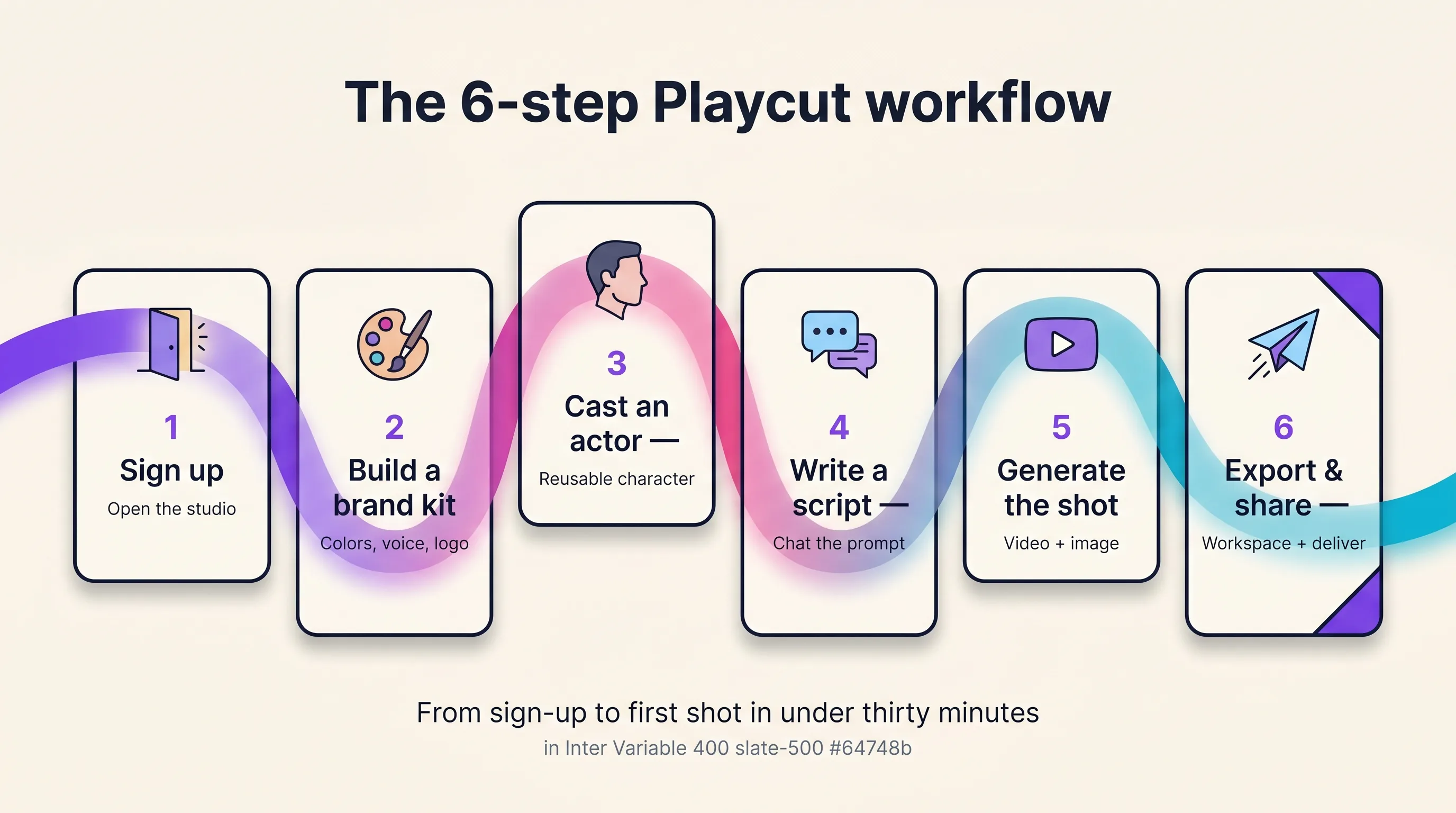
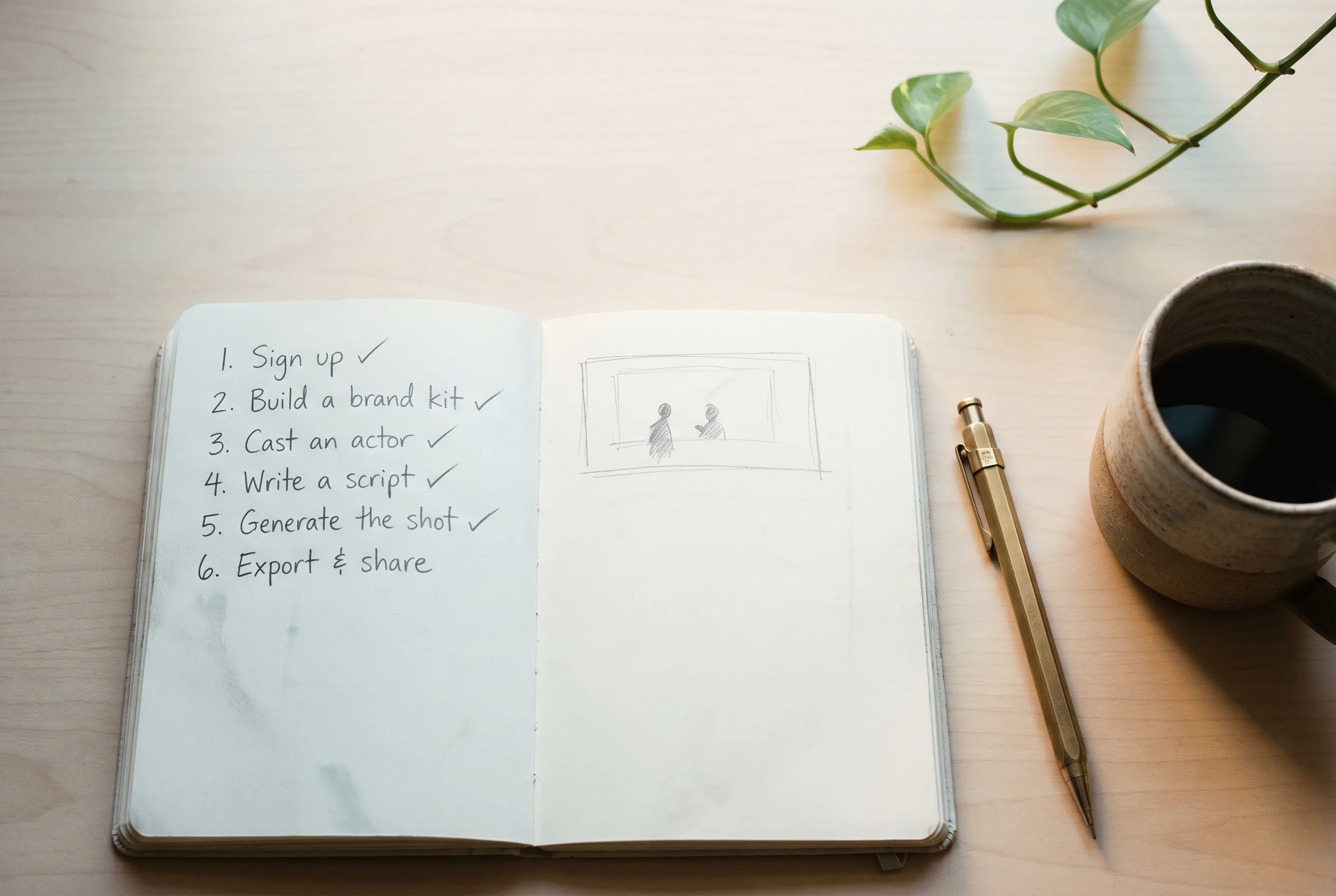
Six steps, in order: 1. Sign up at app.playcut.ai. 2. Cast a reusable AI actor with the Playcut Actor Engine.
3. Write or paste your script in the chat. 4. Generate the video.
5. Generate the images. 6. Export and share.
Pricing: Hobby $9/mo, Pro $29/mo, Studio $79/mo (4 seats), Agency $149/seat/mo. Every plan bills at checkout — cancel anytime.
Get started with Playcut →
What is Playcut AI?
Playcut is a chat-driven AI studio that keeps every generation model behind one prompt box. Google Veo 3.1 is the default for cinematic video, Seedance 2.0 takes the longer 4K takes, Nano Banana Pro is the default for high-fidelity stills and reference work, and xAI Grok Imagine covers fast, cheap kinetics.
Instead of switching between single-purpose tools, you describe what you want, choose a model from the picker, and Playcut manages credits and ships outputs into a workspace organized for teams and agencies.
The multi-model lineup is the wedge. Runway runs one model. Pika runs one model. Sora ran one model — and shut down April 26, 2026.
Playcut sits across four vendors, lets you pick per shot, and bills against one flat credit ledger. Paired with the Playcut Actor Engine for reusable characters and multi-brand brand kits for agency workflows, it’s the only studio shipping all three primitives — model breadth, persistent AI actors, multi-brand brand kits — together. The multi-model studio explainer covers each model in detail.
Step 1 — Create your Playcut account
Sign up at app.playcut.ai — the same URL is wired to every Get started CTA on the site, including the homepage hero and the AI actors product page. Pick a plan up front (Hobby $9/mo, Pro $29/mo, Studio $79/mo, or Agency $149/seat/mo) and check out — every plan bills at checkout and unlocks its full feature set immediately.
There is no free-credit tier — Hobby at $9/mo is the entry point, and you can cancel anytime.
Behind the signup screen Playcut auto-creates your workspace and seats you as the workspace owner. Your account ships with two folder types out of the box: a Team folder that every workspace member can read and generate into, and a Private folder that’s auto-created per user for early drafts and experiments.
Folder mutations are creator-only — collaborators can read your work and generate alongside it, but only you can rename, move, or delete what you created. That single rule is why agencies survive client reviews without accidentally clobbering each other’s takes.
What ships on day one

Full credits for your tier (500 on Hobby, 2,000 on Pro, 6,000 on Studio, 10,000 per seat on Agency), the eight built-in studio photographer filters (Editorial Light, Studio Softbox, Golden Hour, Lookbook Day, E-com Hero, Neon Night, Macro Detail, Lifestyle Cafe), image generation, video generation, voice cloning, the Playcut Actor Engine, the API and MCP surface (34 tools across 8 categories), and TTS in 10 languages.
Commercial use is included on every paid tier — every output you generate is yours to ship.
Picking a plan
Don’t get cute with the plan choice yet. Hobby at $9/mo is the cheapest path to test the studio with 3 custom AI actors, and Pro at $29/mo is the recommended creator tier — 2,000 credits, 10 actors, and the same no-watermark commercial license.
A first month on Hobby lets you stress-test the workflow against real briefs before committing to a bigger tier. Agencies running multiple client brands will eventually want Studio or Agency for multi-brand brand kits and seat math, but most readers land on Pro and graduate when the variant count forces it.
Annual billing saves about 17% (2 months free) across all four tiers once you’ve decided to stay — full breakdown in the Playcut pricing guide.
Step 2 — Create your first AI actor
The Playcut Actor Engine is the single feature that determines whether your first month compounds or quietly burns credits. It binds appearance, wardrobe, and brand-kit context into a persistent runtime profile that re-casts the same actor identically across every generation — 100% character consistency across stills, motion video, UGC ads, and on-product compositing, the same actor, the same face, the same wardrobe across every shot in your campaign.
Lose that consistency and the campaign collapses. Hold it and the actor becomes a durable brand asset that runs an entire quarter of creative on one casting brief.
Open the Actors panel inside your workspace and start a new actor. You have two build paths and they cost the same.
Build path A — text brief
Describe the character in plain language across six dimensions: age range, ethnicity and heritage (be specific — “Korean American in her late 20s” lands, “Asian” drifts), body type, hair, signature wardrobe register, and one or two photographer-style references that anchor the look.
Build path B — reference upload
Drop 2–5 reference photos that anchor visual identity (HEIC from a phone? run it through the free image converter first), then layer the same six-dimension brief on top. Path B is the stronger build for branded actors, but only use reference photos you own the rights to — uploaded-content terms apply.
Layer outfits and voice with the Playcut Voice Engine
The actor isn’t a single image — it’s a stack. The Actor Engine returns 8–12 sample stills from your first identity pass, you approve or send back for refinement, and the actor saves to your library as a reusable ID.
From there you layer outfit variants — two to four named looks the actor defaults to in different contexts: everyday, on-brand uniform, formal, lifestyle.
Speech is deliberately not part of the actor. You write the spoken line into the prompt and the video model performs it — Playcut cannot bind a voice to an actor, which is why an Act clip carries no voice surcharge and no separate TTS step. The Playcut Voice Engine is a separate tool: clone a voice from a 30–60 second consented sample or design one from a text brief, then generate standalone speech audio in 10 languages.
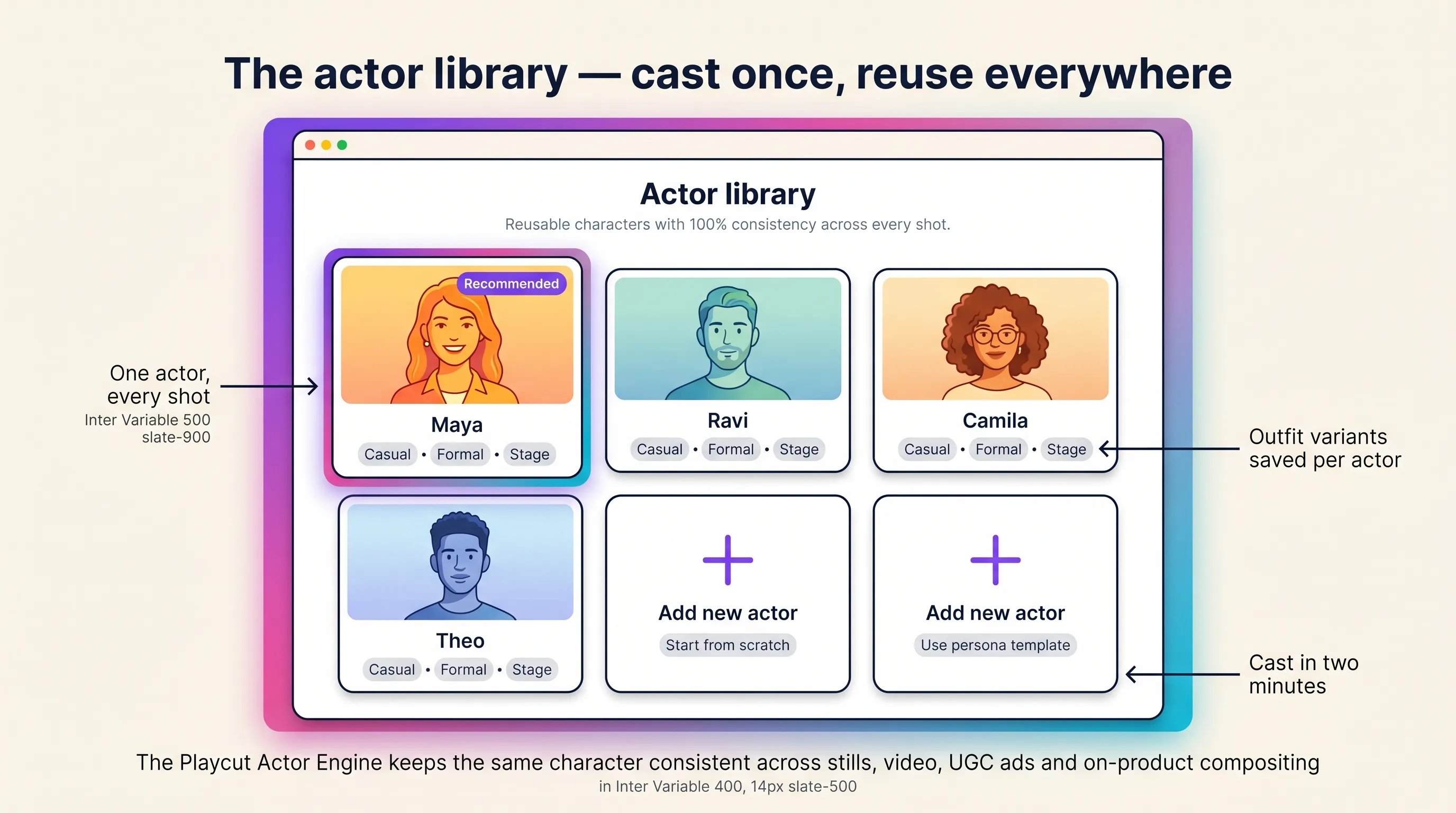
Saved actors land in the workspace-shared library, which means the same actor ID powers four downstream modes from one chat surface: Actor Shoot for stills, Actor Video for cinematic motion clips, Actor Act for vertical 9:16 UGC reads, and Actor Video Extension for stretching an existing clip.
Hobby ships 3 actor slots, Pro 10, Studio 25, Agency unlimited. Most users have a production-ready actor inside 90 minutes and their first shipped asset before lunch — the deep-dive AI actor guide covers the full 7-step build playbook.
A note on real-person likeness
Playcut is built for fully synthetic actors, and that’s the safer path. Right-of-publicity laws apply to readily identifiable real people across every relevant US and EU jurisdiction, and SAG-AFTRA Digital Replica rules attach to hybrid productions mixing real performances with AI continuation.
If the real person is yourself or a contracted spokesperson with explicit written consent, you can upload reference photos through Path B above. Playcut grants commercial usage rights on every actor in a paid workspace, but the right-of-publicity obligation stays with you.
Step 3 — Write or paste your script
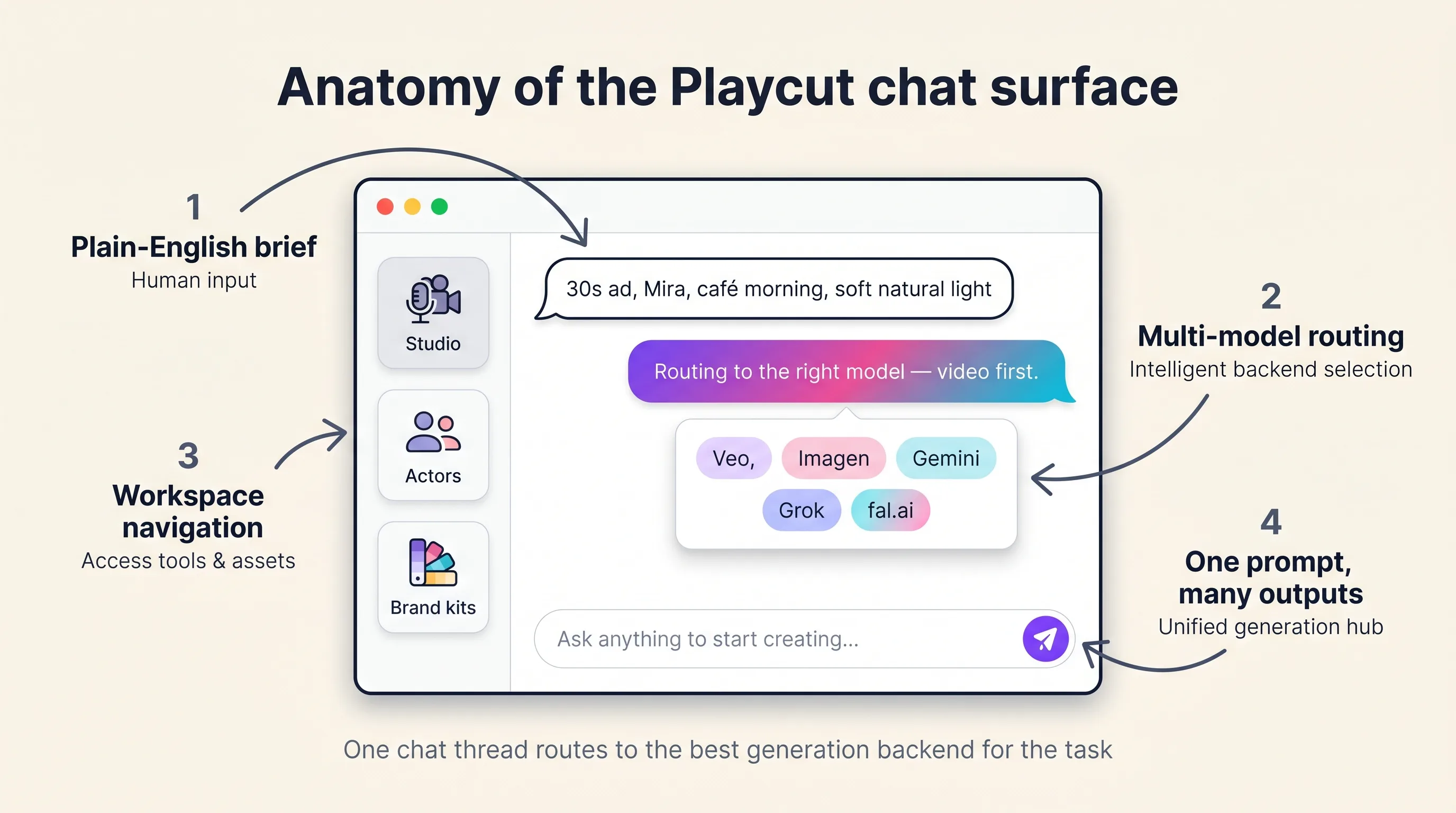
Open the studio chat and drop your script straight into the message field — Playcut treats the chat surface as the single entry point for every generation type, including scripted actor video. There is no separate script-editor route; the chat is the editor.
Tag the AI actor you saved in Step 2 from the actor picker so the line and the face resolve to the same identity before you hit generate. You have two paths here, and the right one depends on whether you arrived with the copy already written.
The first path is paste-your-own: drop a script you wrote in Docs, in a brief, or on a napkin, and Playcut will deliver it line-for-line. The second path is ask-the-studio: type something like “Write a 20-second TikTok hook for a magnesium sleep gummy, problem-agitate-solve, conversational tone” and the studio chat will draft, tighten, or A/B the script with you.
Most teams iterate two or three passes in chat before they ever hit generate.
Speech inside a video render is not a picker at all: you write the line and the video model performs it. The Playcut Voice Engine is the separate tool for standalone speech audio, covering 10 languages with native intonation. Voices are workspace-shared, so the voice your colleague designed for a client on Monday is the same voice you reach for on Friday.
Length matters more than most teams expect. For ad-native UGC, target 15 to 30 seconds of script — that’s the sweet spot where Meta and TikTok creative compound and where the Playcut Act feature holds its tightest phoneme timing. Paste a draft into the free video script timer to confirm the runtime at a natural speaking pace before you generate.
Cinematic narrative beats run shorter: a single Veo clip caps near 8 seconds of motion before you reach for video extension, so script a hero clip in two or three sentences per scene. Demo walkthroughs and explainers stretch longer — just expect to assemble them from chained generations rather than one shot. The free Veo Prompt Builder and Imagen Prompt Builder keep the prompt structure tight before you spend a credit.
Once a clip is rendered, the free video-to-GIF converter turns it into a lightweight looping preview for email, Slack, or a docs embed. If an inbox or chat app still rejects it, shrink that GIF to a target file size.

Linking the script to a saved AI Actor is the move that converts a one-off generation into a campaign. Once an actor is tagged on the chat message, every subsequent line, language variant, or wardrobe swap inherits the same face and brand-kit-locked palette.
This is the character-consistency primitive the multi-model studio explainer describes — same identity across stills, lookbook, UGC, and demo, no per-generation re-prompting.
Step 4 — Generate your AI video
Tell the chat what you want, pick a model or leave the default, and hit generate. That’s the whole user-facing flow, and it’s the single biggest difference between Playcut and the single-model generators it replaces.
The multi-model wedge
Veo 3.1 handles cinematic motion with native audio, on a fixed ladder of 4, 6 or 8 seconds; Seedance 2.0 takes 15-second and 4K work. Nano Banana Pro covers high-fidelity stills and reference frames, with Nano Banana 2 at roughly half the price for volume.
Grok Imagine covers the fast, cheap end — phone-camera UGC framing, product turntables, image-to-video loops — while Wan 2.7 and HappyHorse 1.1 handle video editing and audio-driven motion. Every capability has a default, and the picker sits beside the prompt box. For an edit, our HappyHorse prompts for editing a clip show how to word the change you want on footage you already have.
The multi-model lineup is the wedge. Runway runs Gen-4. Pika runs Pika. Sora ran Sora — one model per tool, with the prompt vocabulary, credit-cost ceiling, and weakness profile of that one model baked in.
In Playcut a cinematic dolly-in goes to Veo 3.1, a vertical talking-head goes to the actor pipeline, a product hero loop goes to Grok Imagine, and a reference-style image goes to Nano Banana Pro — all from the same chat, all paid out of the same credit ledger.
Four actor generation modes
When the prompt is about a saved actor, Playcut exposes four generation modes you pick from the chat or call by name through the MCP server:
- Generate Actor — build the actor’s still likeness with appearance, wardrobe, and pose variants. The identity pass that every later mode references.
- Actor Shoot — still photography of the actor, including on-product compositing where the actor wears, holds, or uses your real SKU.
- Actor Act — motion video of the actor performing a script, spoken by the video model itself with natural head motion. The UGC workflow.
- Actor Video — general video featuring the actor — lifestyle b-roll, demo walkthroughs, ambient scenes with no spoken line.
Stretch shots with Video Extension and Video Interpolation
Two more video primitives let you go past the standard clip length. Video Extension appends additional seconds to an existing clip while preserving motion continuity — the way you stretch a 6-second Veo shot into a 24-second ad spot.
Video Interpolation bridges two keyframes with intermediate motion, useful for product reveals, scene transitions, and higher-framerate output.
Generation time on a standard clip lands in the 1-to-2 minute range for a single UGC ad, and longer for a high-resolution cinematic Veo beat. The studio runs takes in parallel by default, so a 5-language × 10-hook batch ships in roughly the same wall-clock time as a single ad. Credit cost is published per generation — see the Playcut pricing breakdown for the full math.
Iterating runs through chat. If a take is close but the lighting reads too cool, type the adjustment — “warmer key, golden-hour register, keep the wardrobe” — and Playcut runs a refinement pass without rebuilding the actor or switching models. Full regeneration is one click when the take is wrong directionally; chat-based refinement is the default when it’s right but needs a nudge.

Step 5 — Create AI images
Image generation in Playcut follows the same chat-driven pattern as video — describe the still you want and pick the model, or take Nano Banana Pro as the default (Nano Banana 2 for cheaper volume, Grok Imagine for fast one-offs). Outputs land in the same workspace folder regardless of which model rendered them, so you don’t have to think about model selection unless you want to.
Four image flows
Text-to-image is the standard moodboard and ideation flow — describe a scene, get a still in 5–15 seconds. Reference-to-image is the workhorse for real campaign work: upload a product photo or actor reference, describe the new scene, and the output preserves the reference identity (silhouette, colors, labels, surface texture) while everything around it changes.
Actor Shoot stills place a saved Playcut Actor into a scene wearing or holding your product, with the actor’s face locked across every generation in the workspace. Batch reference-to-image queues 12+ scenes against a single upload and processes them in parallel — the output lands as a downloadable archive or stays organized inside the workspace folder structure.
Tag a brand kit before you generate
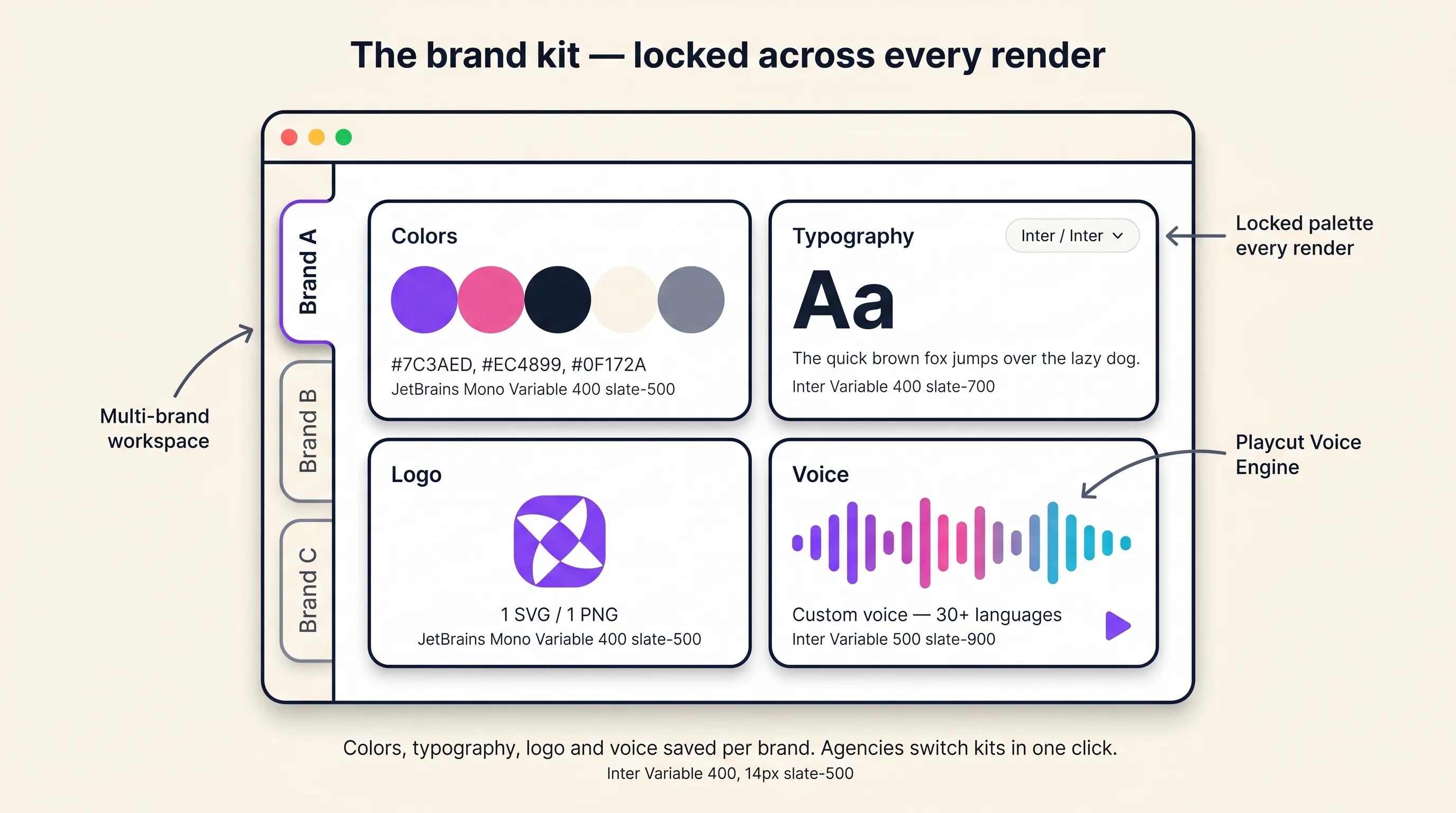
Brand kits make all four flows on-brand by default. When a brand kit is tagged on a generation, the kit’s palette is injected at the style layer of the prompt, typography rules apply to any baked-in text, and the kit’s lighting register propagates across every output in the batch.
Agencies running multiple clients keep a separate kit per brand inside the same workspace and switch on the fly. The free Color Palette Extractor is the cleanest way to seed the brand kit from your existing brand photography — feed in a hero shot, lock the dominant colors into the kit, done.
Native aspect ratios and resolutions
Playcut renders images natively at ten aspect ratios — 1:1, 2:3, 3:2, 3:4, 4:3, 4:5, 5:4, 9:16, 16:9, and 21:9 — at 1K, 2K, or 4K resolution with no post-generation cropping. Grid output formats (2×2, 3×3, 4×4) let you preview a batch in a single image for fast comparison.
Common use cases: Shopify product detail heroes (1:1 or 4:5 at 2K), Instagram feed and Reels covers (4:5 or 9:16 at 2K), web hero banners (16:9 at 2K or 4K), Amazon and Etsy thumbnails (1:1 at 1K or 2K), and full editorial sets that ship 12 scenes per SKU in a single working session.
Pick the ratio before you write the prompt — the free Aspect Ratio Calculator gives you a per-platform reference. For paid-social workflows, the UGC Ads product page covers the production surface end-to-end.
When AI actors deliver endorsement-style content — testimonials, reviews, UGC — disclosure rules apply. The FTC Endorsement Guides require disclosure in a way a reasonable consumer would understand, and platform-specific rules attach on top: Meta’s branded-content and AI-generated content policy and TikTok’s AI-generated content policy both require AI labels on synthetic content with people-likeness.
Step 6 — Export and share
Every output lands in the workspace folder structure first, and download is one click from there. Images export as WebP for the modern web format and JPG for legacy compatibility, and video exports as MP4 — the same files you’d hand to a marketplace, a CMS, or a creative team.
Folder organization splits between Team folders (shared, every workspace member can read and generate into) and Private folders (per-user, auto-created), which is the structural difference between the single-seat tiers and the Studio plan: Hobby and Pro are one seat with private folders only; Studio adds up to four seats with shared Team folders for collaborative work.
Direct share links let you hand off any asset without re-downloading and re-uploading. The share-link capability generates a URL to the rendered output, which is how MCP-driven agents (Claude Code, Cursor, n8n) ship finished work back into Slack, Notion, or a brand’s review tool without round-tripping through your local disk.
Brand kits move across team members the same way the workspace does — every member of a Team or Agency workspace sees the same brand kits, so a designer building a kit on Monday is feeding the whole team’s generations by Tuesday.
Commercial use is included on every plan — Hobby, Pro, Studio, and Agency — with no watermarks on paid outputs and no per-image licensing fees. See the Playcut pricing breakdown for the full breakdown on credits, seats, and storage per tier.
Iteration closes the loop: pull any finished asset back into the chat as a reference, describe a variant, and the studio renders the new version against the original. That’s how a single hero still becomes twelve seasonal variants without leaving the workspace.
Tips for better Playcut results
These tips come from hands-on experience with the platform and from the recurring “wish I’d known” notes from AI video and image creators. Every tip leverages a feature that’s actually in the product today.
1. Write prompts in the order Subject → Action → Context → Camera → Style → Lighting. Google’s official Veo prompt guide is built around this structure, and the same skeleton works for Nano Banana stills in the Playcut studio. Front-loading the subject and action gives Veo a stable identity to animate before it reads the cinematic flourish — the cheapest fix for “wrong person in the right scene.”
The free Veo Prompt Builder and Imagen Prompt Builder lock you into this structure so you stop debugging prompts and start debugging shots. Google Cloud’s Ultimate prompting guide for Veo 3.1 has the deeper anatomy if you want to specialize.
Working from a thin one-line idea instead? The free AI prompt enhancer expands it with lighting, lens, mood, and color detail before you spend a credit.
2. Save the actor once, then never re-describe them. The single biggest mistake new users make is typing the appearance brief into every prompt instead of picking a saved actor from the Playcut Actor Engine and just describing the scene. This is the wedge — best-in-class character consistency across stills, motion video, UGC ads, and on-product compositing.
Zeus eBikes documented this exact insight: switching to a saved custom actor was what unlocked their 10× output increase from one quarterly video to multiple per week.
3. Set up the brand kit before you generate the first asset. A brand kit holds palette, typography, signature accessories, and tone rules that auto-inject as context on every generation. A kit set up on day one means assets one through five hundred are already on-brand. Set it up after you’ve generated 50 assets, and you spend a weekend regenerating things that drifted.
4. Use a reference image whenever the composition matters, text-only when the concept is open. Image-to-image is the right mode for “this exact product on a marble surface” because the AI has visual anchors to lock to. Text-only is the right mode for “twelve different scene concepts, surprise me.” Drop the product or actor reference into Playcut’s reference slot any time silhouette, color, or label accuracy is non-negotiable.
5. Pick the aspect ratio for the platform before you write the prompt. 9:16 for TikTok, Reels and Shorts; 1:1 for Instagram feed and Amazon thumbnails; 4:5 for Instagram in-feed; 16:9 for YouTube and landing pages.
The model frames the subject differently when it knows the ratio up front — headroom for vertical, wider environment for landscape. Use the free Aspect Ratio Calculator before you generate.
6. Refine in chat for small fixes; regenerate from scratch for fundamental misses. If the actor’s expression is wrong, the wardrobe color is off by a shade, or the camera angle needs a nudge, ask Playcut to change that one thing in the same conversation. If the entire concept is wrong, throw it away and start a fresh prompt — chain-refining through five conversational turns to fix a broken seed wastes credits and never converges.
7. Take the defaults until a shot argues otherwise. Playcut ships Veo 3.1 for cinematic video, Nano Banana Pro for stills and reference work, Seedance 2.0 for long or 4K takes, and Grok Imagine for cheap iteration. The defaults are the defaults because they win most briefs.
The exception: a “more cinematic” pick on a UGC clip costs more per second than the default, so only switch when the brief genuinely calls for cinematic motion.
8. Storyboard before you generate when the deliverable is more than one clip. Sequence-level consistency comes from generating all clips of a campaign in a planned batch with consistent prompt language, not from generating one clip and improvising the next three days later.
Map every shot before you spend a credit. The free Storyboard Frame Counter gives you the credit-cost preview at planning time.
9. Use Team folders for review, private folders for drafts. Workspaces ship both — drop work-in-progress into a per-user Private folder so the rest of the team isn’t scrolling through 40 throwaway variants, then move the three finals into a Team folder for approval. Agencies running multiple clients should add one Team folder per client (Acme — Spring Launch, Acme — Always-On, Beta Brands — Q3) and bind a separate brand kit to each.
10. Pull a palette from your existing brand photography to seed the brand kit. Don’t type in hex codes you guessed at — feed your existing brand hero shots, packaging photos, or website screenshots into the free Color Palette Extractor and lock the dominant and accent colors into your Playcut brand kit.
Locking color values as a prompt-template parameter is what produces consistent output at scale; eyeballed hex codes drift.
11. Match the written register to brand tone, then localize before re-casting. The right move for a multi-language UGC campaign is to rewrite the same scripted line per market and let the video model perform it — not to cast a new actor per market. One actor, one register, every language.
12. Use video extension to stitch shots; don’t generate one continuous long-form clip. Action tension comes from cut density, not single-shot quality. The right pipeline is: generate four to eight 5–10 second shots in a storyboard, then use video extension to seamlessly continue motion, lighting, and color grading between them.
A 30-second hero film is six well-timed 5-second beats stitched together — never one 30-second blob the model loses identity halfway through. The full /tools hub covers every free planner.
Common Questions
Is Playcut AI free?
Playcut does not have a free studio tier or a free trial — every plan bills at checkout, starting with Hobby at $9/mo, and you can cancel anytime. Hobby unlocks the full studio — image, video, AI actors, and brand kits — from day one. Playcut also offers free creator tools at playcut.ai/tools, Veo Prompt Builder, Imagen Prompt Builder, Aspect Ratio Calculator and more, with no signup needed.
How much does Playcut cost per month?
Playcut runs four flat USD tiers: Hobby $9/mo (500 credits, 3 custom AI actors, 1 brand kit), Pro $29/mo (2,000 credits, 10 actors, 1 seat) — the recommended creator tier, Studio $79/mo (6,000 credits, 25 actors, multi-brand kits, 4 seats = $19.75/seat), and Agency $149/seat/mo (10,000 credits per seat, unlimited actors, unlimited seats, API access).
Annual billing saves about 17% on every tier (2 months free). Full breakdown including credit costs per generation in the Playcut pricing guide.
Do my AI actors stay consistent across multiple videos?
Yes — Playcut’s Actor Engine locks an actor’s face, body, and wardrobe into a saved profile that re-appears identically across stills, motion video, UGC ads, and on-product compositing. Most platforms drift by shot 3–8 because they re-roll the character each generation. In our May 2026 test against seven competitors, Playcut was the only platform that held the same actor across all 10 shots without drift. Deep dive in the AI actor guide.
Which AI models does Playcut use to generate video and images?
Playcut ships four vendors on one surface: Google Veo 3.1 and Seedance 2.0 for cinematic video, Nano Banana Pro and Nano Banana 2 for stills, xAI Grok Imagine for both, plus Wan and HappyHorse for video editing. Pick the model per shot or take the default, run multiple takes in parallel, and everything lands in your workspace. No API keys, no tab-switching, no model lock-in.
Can I use Playcut outputs commercially?
Yes — every paid Playcut plan, starting with Hobby at $9/mo, includes commercial use rights on every generated image, video, actor, and voice. You own the outputs and can use them in paid ads, client campaigns, product pages, and TikTok/Meta UGC creative. Agencies on Studio and Agency plans can scope brand kits per client for clean rights handoffs. For real-person likeness, FTC and platform AI-disclosure rules still apply — see the AI actor guide for compliance detail.
Does Playcut work for agencies and teams?
Yes — Playcut is built for agency workflows. The Studio plan ($79/mo) includes multi-brand brand kits (colors, typography, logos, voice tone per client), 25 custom AI actors, and 4 team seats ($19.75/seat — the cheapest per-seat team plan in category).
The Agency plan ($149/seat/mo) adds unlimited brand kits, unlimited custom actors, unlimited seats, and API access for pipeline integration. Workspaces have shared Team folders and per-user Private folders with creator-only mutation rules — no accidentally clobbering each other’s work.
What if I cancel my Playcut plan — do I keep my AI actors and brand kits?
Your workspace, AI actors, brand kits, and saved generations stay on your account when you cancel — you just lose generation access on a downgraded or cancelled plan. If you cancel, you keep access until the current billing cycle ends, then the workspace goes read-only. Resubscribe anytime and your full actor library and brand kits come back instantly.
Still comparing? The head-to-head Playcut alternatives breakdown ranks Runway, Pika, Kling, Sora, Luma, Higgsfield, Arcads, and HeyGen against Playcut — and the Playcut vs Runway comparison covers the single most-asked head-to-head.
Start creating with Playcut
Try the multi-model studio
One chat. Every best-in-class model. Persistent actors. Multi-brand kits.
Playcut ships Veo 3.1, Seedance 2.0, Nano Banana Pro, and Grok Imagine on one credit balance — with reusable AI actors that hold the same face and wardrobe across stills, motion video, UGC ads, and on-product compositing. Pro $29/mo unlocks 10 custom AI actors. The cheapest competitor that ships 10+ custom actors at a comparable price is HeyGen Business at $149/mo + $20/seat.
Every plan bills at checkout. Cancel anytime.