What Is Playcut? Your Cinematic AI Video & Image Studio
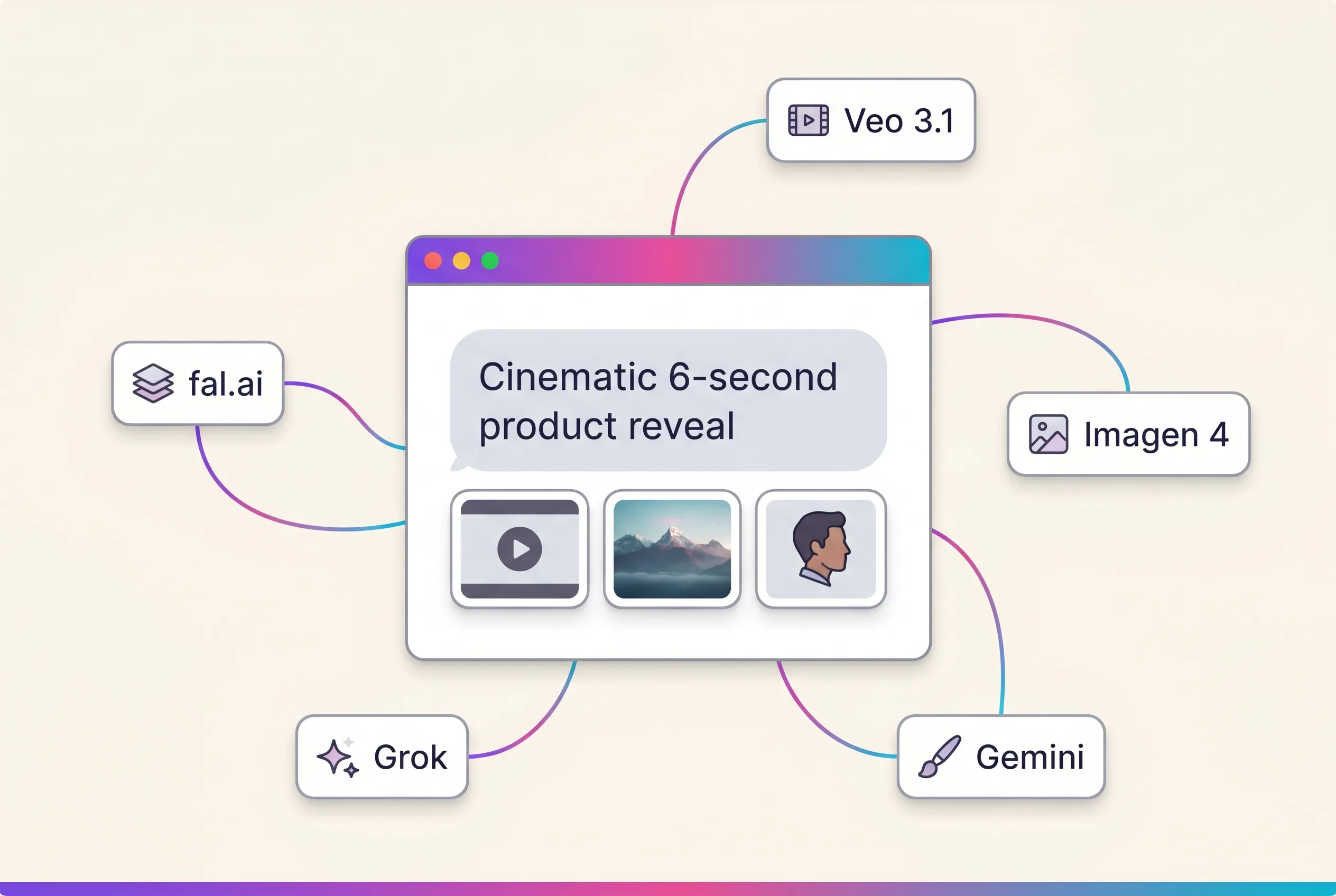
What is Playcut? It’s the cinematic AI video and image studio that routes your prompts to the right generation model — Google Veo for video, Imagen and Gemini for images, plus xAI Grok and fal.ai for specialized providers. Instead of bouncing between single-purpose tools, you describe what you want in chat and Playcut picks the right model, runs multiple takes in parallel, and ships the output into a team-ready workspace.
If you’ve been switching between Runway, Pika, Kling, and Sora to find the right model for each shot — or stitching together image generators with separate video tools — this guide covers everything you need to know about Playcut: how it works, what features it includes, which models it routes to, and how it compares to single-model generators.
Table of Contents
- What Is Playcut?
- How Does Playcut Work?
- Key Features of Playcut
- Supported Models & Generation Types
- Playcut Pricing and Plans
- Playcut vs Single-Model Generators
- Who Is Playcut For?
- Getting Started with Playcut
- Frequently Asked Questions
What Is Playcut?
Playcut is an AI video and image generation studio built around a multi-model, chat-driven workflow. Rather than locking you into one model or making you juggle API keys across providers, Playcut owns the routing layer: you describe a shot, image, or extension in natural language, and Playcut sends the request to the model best suited for the task.
Tell Playcut something like “Cinematic shot of a vintage red convertible driving along a coastal highway at golden hour, slow dolly-in, 16:9, 8 seconds” and it routes to Google Veo, runs four takes in parallel, and saves them all to your Team folder with the right brand kit applied.
This approach changes how AI video work happens day-to-day:
- No more model switching. Veo, Imagen, Gemini, Grok, and fal.ai live behind one chat surface.
- No more lost takes. Every generation lands in your workspace, organized by folder.
- No more brand drift. Brand kits travel with every prompt, agency-style.
- No more rebuilding characters. AI actors save once, reuse across every shoot.
Playcut was designed for the way creators and agencies actually work — across many brands, many shots, and many takes per shot — not for one-off generator demos.
How Does Playcut Work?
Playcut follows a simple three-step flow:
Step 1: Describe What You Want
Open the studio chat and describe your shot, image, or extension. Optionally add a reference image, set an aspect ratio, pick a duration, and tag a brand kit if you’re working on a client project.
You don’t pick the model. You don’t manage API access. You describe what you want.
Step 2: Playcut Routes to the Right Model
Behind the scenes, Playcut sends your request to the right provider:
- Cinematic motion? Routes to Google Veo.
- High-fidelity still? Routes to Imagen.
- Reference-driven image? Routes to Gemini.
- Specialized provider task? Routes to fal.ai or Grok.
The studio runs multiple takes in parallel so you can compare and pick — instead of generating one expensive take and crossing your fingers.
Step 3: Pick, Iterate, Ship
Compare takes side-by-side. Iterate the prompt — adjust lighting, camera, subject — without rebuilding from scratch. Extend a clip with a new shot, or interpolate between two stills. Save the winner to your Team folder. Pull it into your edit.
Credits track everything in one ledger, so your bill doesn’t surprise you.
Key Features of Playcut
Multi-Model Routing
Playcut is model-agnostic by design. As new models ship, we add them. Your workspace, brand kits, and actors stay the same. You’re not locked into Gen-4 or Pika or Kling — you get the best model for the task.
Workspaces & Folders
Each workspace has two folder types:
- Team folders — shared with every workspace member, every generation visible.
- Private folders — one auto-created per user, for early drafts and experiments.
Mutation rules are creator-only by default — collaborators can read and generate-into a folder, but only the creator can rename, move, or delete. No more accidentally clobbering someone else’s work.
Multi-Brand Brand Kits
A workspace can hold many brand kits. Each one has:
- Colors, typography, logos
- Voice (tone, doSay, dontSay, brand story)
- Logo assets stored as workspace files
Tag a brand kit on any generation and Playcut applies the brand context — colors and visual style on visuals, voice and tone on captions and prompts. Built for agencies running 5+ clients out of one Playcut workspace.
AI Actor Library
Generate an actor once — appearance, voice, outfit variants — then reuse across every shoot. The actor library is workspace-shared, so your team can pull from a consistent set of characters across campaigns. No more rebuilding the same AI human every time.
Every Generation Type, One Surface
Playcut supports all the generation types you actually need, all from the same chat:
- Text-to-image (Imagen, Gemini)
- Reference-to-image (Gemini)
- Text-to-video (Veo)
- Image-to-video (Veo)
- Reference-style video (Veo)
- Video extension (Veo)
- Video interpolation (Veo)
- AI actor generation (Gemini)
- AI actor shoot (Veo)
Free Creator Tools
Playcut offers free tools at /tools — no signup required:
- Veo Prompt Builder
- Imagen Prompt Builder
- Aspect Ratio Calculator
- Storyboard Frame Counter
- Color Palette Extractor
Supported Models & Generation Types
| Model | Provider | Best For |
|---|---|---|
| Veo | Cinematic video, motion fidelity, image-to-video, video extension | |
| Imagen | High-fidelity stills, photorealism | |
| Gemini | Reference-to-image, prompt understanding, expansion | |
| Grok | xAI | Alternate generation provider |
| fal.ai | fal | Specialized providers behind one API |
Playcut picks the model per task. You can override the routing if you have a preference, but the default is “best model for what you described.”
Playcut Pricing and Plans
Playcut has three flat monthly tiers — no per-second pricing surprises:
| Plan | Price | What’s included |
|---|---|---|
| Solo | $19/mo | 1,500 credits, 5 custom AI actors, 1 brand kit, 7-day trial |
| Pro | $39/mo | More credits, multi-brand kits, AI actors, team folders, priority queue |
| Studio | $99/mo | High-volume credits, unlimited brand kits, unlimited actors, API access, dedicated support |
Annual billing saves ~17% on every tier. Each plan starts with a 7-day trial — pick a plan, card required, cancel anytime within the trial at no charge.
For a full breakdown of credits, features, and competitor comparisons, read our Playcut pricing guide.
Playcut vs Single-Model Generators
| Feature | Playcut | Runway | Pika | Kling | Sora |
|---|---|---|---|---|---|
| Cinematic video model | Veo | Gen-4 | Pika 2 | Kling 2 | Sora |
| Image generation | Imagen + Gemini | Limited | — | Limited | — |
| Workspaces & team folders | Yes | Limited | — | — | — |
| Multi-brand brand kits | Yes | — | — | — | — |
| AI actor library | Yes | — | — | — | — |
| Starting paid tier | $19/mo | $15/mo | $10/mo | $10/mo | Bundled |
Most AI video tools are built around one model. Playcut is built around your workflow — and routes whichever model best serves it. For per-tool deep-dives, see:
- Playcut vs Runway: Full Comparison
- Playcut vs Pika: Cinematic Studio vs Quick Generator
- Playcut vs Kling: Side-by-Side Comparison
- Playcut vs Sora: Studio Workflow vs Headline Model
Who Is Playcut For?
Creators
Solo creators who want cinematic output without juggling tools, API keys, and tabs. Sign up, describe the shot, ship the take.
Marketers
Marketing teams shipping ad creative across formats and channels. Generate hero stills, product video, b-roll, and platform variants from one studio. Brand kits keep visual identity consistent.
Agencies
Agencies serving multiple clients in one Playcut workspace. Multi-brand brand kits, shared AI actor library, team folders, and creator-only mutation rules — built for agency workflows.
Studios
Production studios using AI for previz, storyboards, mood boards, and final shot generation. Studio tier gives high-volume credits and API access for pipeline integration.
Getting Started with Playcut
- Sign up at app.playcut.ai/sign-up — pick a plan, start your 7-day trial, cancel anytime.
- Create a workspace (auto-named “Team” by default, plus a “Private” folder for your drafts).
- Add a brand kit if you have one — paste in colors, upload logos, write voice notes.
- Open the studio chat and describe your first shot. Try a Veo prompt with a reference image.
- Compare takes, iterate, save the winner. Pull it into your edit.
That’s the full loop. From here, explore AI actors, brand kit tagging, video extension, and the rest of the studio.
How Playcut Helps Creators Work Faster
The hardest part of AI video work isn’t generation — it’s the workflow around generation. Playcut compresses that workflow:
- No model selection — Playcut routes for you.
- No tab-switching — every type of generation lives in one chat.
- No lost takes — workspaces and folders hold everything.
- No brand drift — brand kits travel with every prompt.
- No character rebuilding — AI actors save once, reuse forever.
Ready to try it? Start your 7-day trial — pick a plan, card required, cancel anytime within the 7-day trial.
Frequently Asked Questions
What is Playcut?
Playcut is a cinematic AI video and image generation studio that routes prompts to the right model — Google Veo for video, Imagen and Gemini for images, plus xAI Grok and fal.ai providers. You describe what you want and Playcut picks the right model, runs the generation, and saves the output to your team workspace.
How much does Playcut cost?
Playcut starts at $19/month (Solo plan) with 1,500 credits and 5 custom AI actors. The Team plan is $49/month with 4,000 credits, 25 custom actors, multi-brand brand kits, and 4 team seats. The Agency plan is $99/seat/month with 7,500 credits per seat, unlimited custom actors, unlimited seats, API access, and dedicated support. Each plan starts with a 7-day trial — pick a plan, card required, cancel anytime. Annual billing saves ~17%.
Which AI models does Playcut use?
Playcut runs on Google Veo for cinematic video, Imagen and Gemini for high-fidelity images, plus xAI Grok and select fal.ai providers for specialized tasks. We pick the right model per task, so you don’t manage API keys or stitch outputs across tools.
Is Playcut free?
Every Playcut plan starts with a 7-day trial — pick a plan, add a card, get full access for 7 days, cancel anytime within the trial at no charge. Playcut also offers free creator tools at playcut.ai/tools — no signup required.
How is Playcut different from Runway, Pika, Kling, or Sora?
Playcut is a studio, not a single-model generator. Runway runs Gen-4. Pika runs Pika. Kling runs Kling. Sora runs Sora. Playcut routes across Veo, Imagen, Gemini, Grok, and fal.ai — and adds workspaces, multi-brand brand kits, an AI actor library, and team folders. Built for creators and agencies, not just solo experimentation.
Conclusion
Playcut is the studio layer above the AI generation models — multi-model routing, workspaces, multi-brand brand kits, AI actor reuse, and team folders, all in one chat-driven surface. If you’ve been frustrated by single-model lock-in, lost takes, or rebuilding the same character every shoot, this is the tool that compresses your workflow.
Ready to try cinematic AI video and image generation in a real studio? Start your 7-day trial — pick a plan, card required, cancel anytime within the 7-day trial.
Next steps: Read the full Playcut pricing guide or compare directly to your current tool: vs Runway, vs Pika, vs Kling, vs Sora.